Lightroom for iPad: Generative AI

I recently upgraded to an iPad Pro 13” with the M4 chip for no better reason than John Gruber’s assertion that “a Lexus is nicer than a Toyota”. This prompted me to do a deep dive into apps for photo processing raw files from my iPhone 14 Pro Max and my camera, an OM Systems OM-1. I’ve collected a few apps over the years, but none of them really stuck apart from SnapSeed, which works well for editing JPEGs, but raw not so much.

I’m a big fan of Skylum’s Luminar Neo on my desktop machine, so when they released Luminar Mobile I sprung for a subscription without properly testing the app. Big mistake! The results are okay, but the interface sucks. The designer’s appear to have eschewed the conventional slider and used every control widget in the library for no good reason than to use every control widget in the library. Almost every adjustment would be more easily made using a slider from x to y. Skylum recently introduced a new version with a change of name, but no improvements to the UI. I have cancelled auto-renewal.

Many years ago I was a user of Adobe Photoshop and Lightroom on Windows, but the subscriptions became too expensive for my amateur use. I had a big fight with Adobe when I tried to cancel my subscription, which they eventually did, but it left a sour taste so I’ve avoided their products ever since. But time heals all wounds 😀, and I decided to take a look at Lightroom for iPad. It didn’t take may days of the free trial to convince me to take a subscription. The app gave great results on every image a threw at it: iPhone files JPEG, raw and ProRaw, ORF files from my camera and DNG files output from DxO Pure Raw 4 (highly recommended also), which I loaded into Apple Photos.

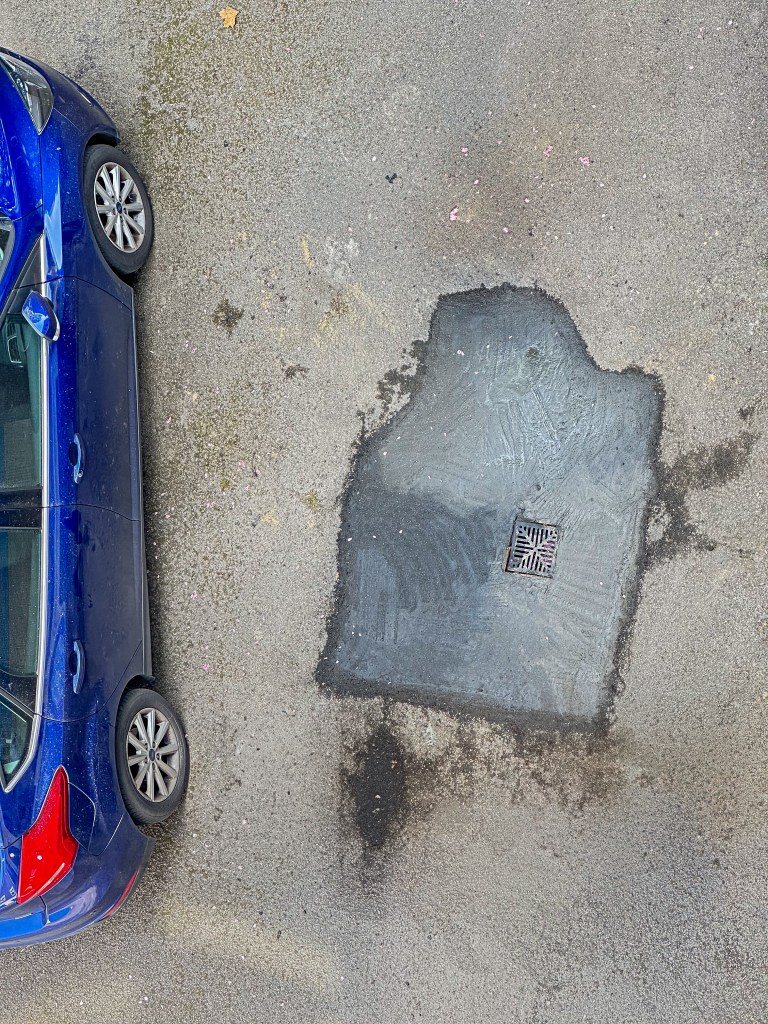
This post isn’t intended to be a review of Lightroom for iPad. What prompted me to write it was a newsletter plugging the “best retouch tool” on iOS. I haven’t had much occasion to use the Generative AI feature in Lightroom, so I tested it on this image:

Image of tarmac with cement repair surrounded by garbage bins
The original image of a tarmac repair

First I removed the bins:

The bins have been removed

Even the small section of the cement repair at the bottom right has been convincingly generated. Some dirt where the bottom left bin was standing has been added.

Next I removed the car:
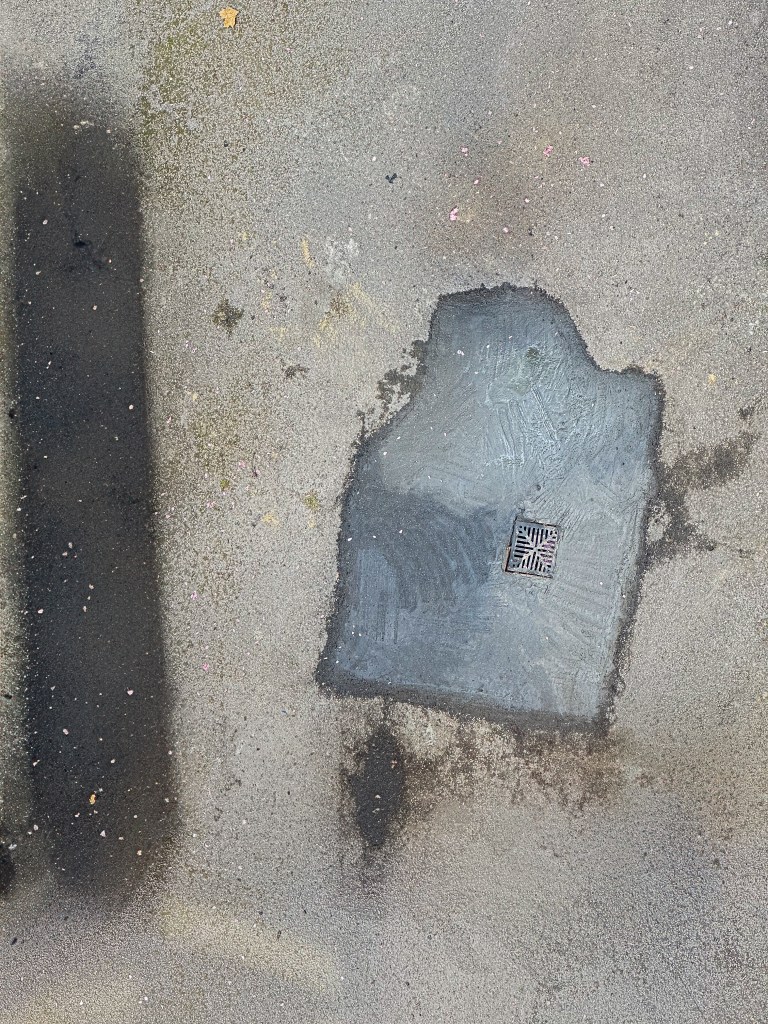
The car is gone

The app has generated a dark area indicating some stain or damp under the car, though its shape is odd.
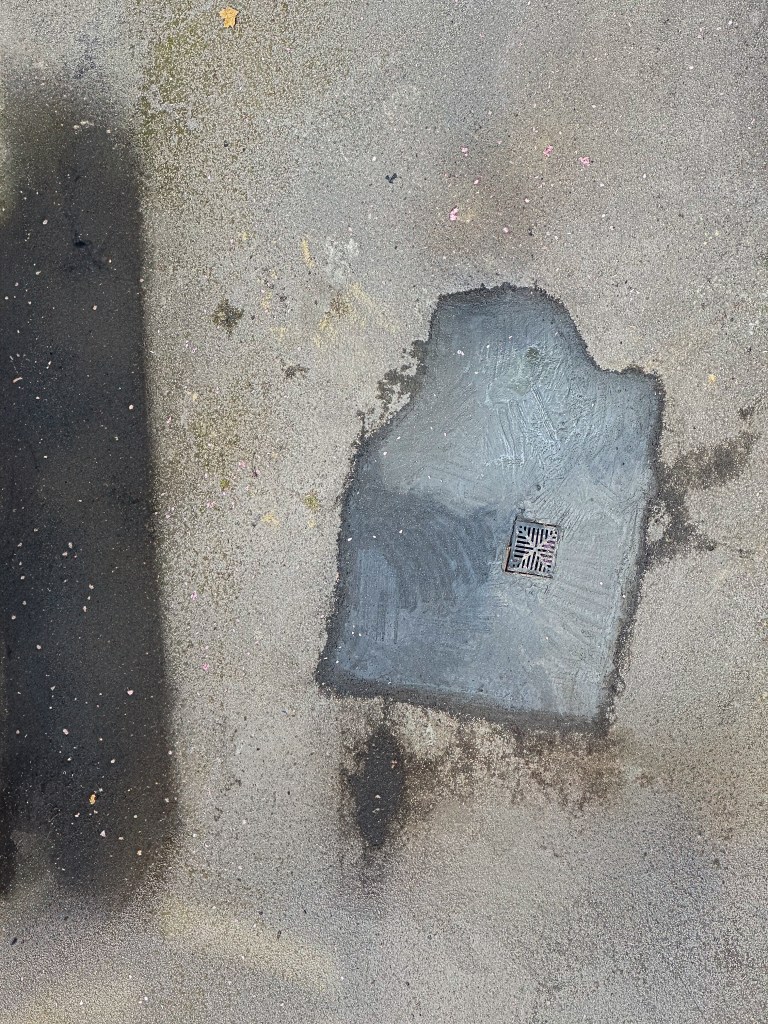
Tweaking the stain

For the final edit, I adjusted the darker area so it reached the edge of the frame. The final result is amazing!


Adobe’s Sleazy Customer Management

I started to use Adobe Photoshop a good few years ago and spent a good chunk of money on upgrades over the years. When Adobe changed to a subscription model, I decided that a monthly sub of a bit under 9 GBP for Photoshop and Lightroom was reasonable. However, for various reasons, I used the software less and less: in the last six months, I’ve done no image processing with Lightroom and opened Photoshop maybe twice.

Nine quid a month for nothing isn’t reasonable so I logged on to my Adobe account see about cancelling my sub. Here was revealed the first bit of sleazy behaviour: there is no way to cancel on the account management page. You have to contact Adobe by chat line or phone. Already I’m expecting some hassle. Anyway, I elected for chat line and after a short wait, Chinthana appeared.

I explained I wanted to cancel because I wasn’t getting any value as I wasn’t using the software. This lead to the second sleazy manoeuvre: I was offered next month free if I carried on with the subscription. At this point, I should point out that the Adobe CC subscription is an annual subscription payable monthly. No doubt, I knew this when I signed up, but had forgotten. Adobe doesn’t remind you very often. I get an invoice each month that includes the line:

“Your Creative Cloud membership will renew automatically each month until you cancel.”

It seems to me it’s reasonable to suppose that I could cancel anytime with a month’s notice. Chinthana explained that the small print doesn’t say this: it says you can cancel, but you have to pay 50% of the remaining annual subscription— 32.48 GBP in my case. By this time, I was pissed off and responded:

“I will pay this under protest. I think this policy is disgraceful for a customer who has paid the sub for at least two years.”

Time for sleazy tactic number 3: I was offered two free months to see out my subscription. The conversation continued:

Roger Cavanagh: No. How many times do I have to repeat myself? I want to cancel. I am getting no value for my money as I do not use the software anymore.
Chinthana: Okay. Are you okay with the cancellation fee?
Roger Cavanagh: No I am not OK with the cancellation fee, but no doubt, the small print says I have to pay it.
Roger Cavanagh: The monthly bill you send says: “Your Creative Cloud membership will renew automatically each month until you cancel.” It does not say, “and you will be charged to leave”.

At this point, Chinthana said he would check with his supervisor. After a little while, he came back on line and said his supervisor had agreed to waive the fee. Now I’m sure than Chinthana does have a supervisor, but I’m not all sure that he asked permission to waive the cancellation charge. It’s more likely that the workflow got to a point that tells the agent to give up and let the customer off.

So I got what I wanted: cancellation. Adobe got almost one month’s sub for nothing because my last payment was only a couple of days ago and I have already uninstalled the software. But I am left with a much-reduced opinion of the company.