Photo Painting: How To Waste Hours (2)

Continuing from Part 1, here are some more apps I played with. One thing, I should have mentioned is that I’m only looking at iPad versions of any apps. Many of them do have iPhone versions, but I expect that I would transfer iPhone pics to the iPad for editing on the larger screen.

SketchMee HD

There is a Lite version of this app, but after playing with it for a little while, I decided to spring for the full HD. There are a number of additional features; key ones for me were the increased picture size (for export) and detail level, and the ability to save direct to the Photos Roll rather than using email or out to social media.
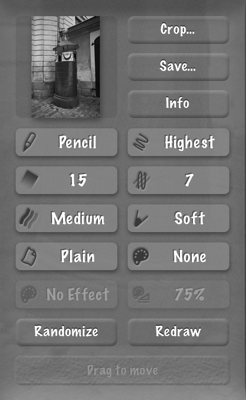
SketchMee Controls

SketchMee Controls

Click on a button to adjust settings. Crop and Save are obvious. Other choices affect technique (pencil/chalk, coloured/not), detail, number of shades, number of overlapped strokes, intensity of shading, tip (levels of hard to soft), paper, paper colour, colour effect and strength of effect.
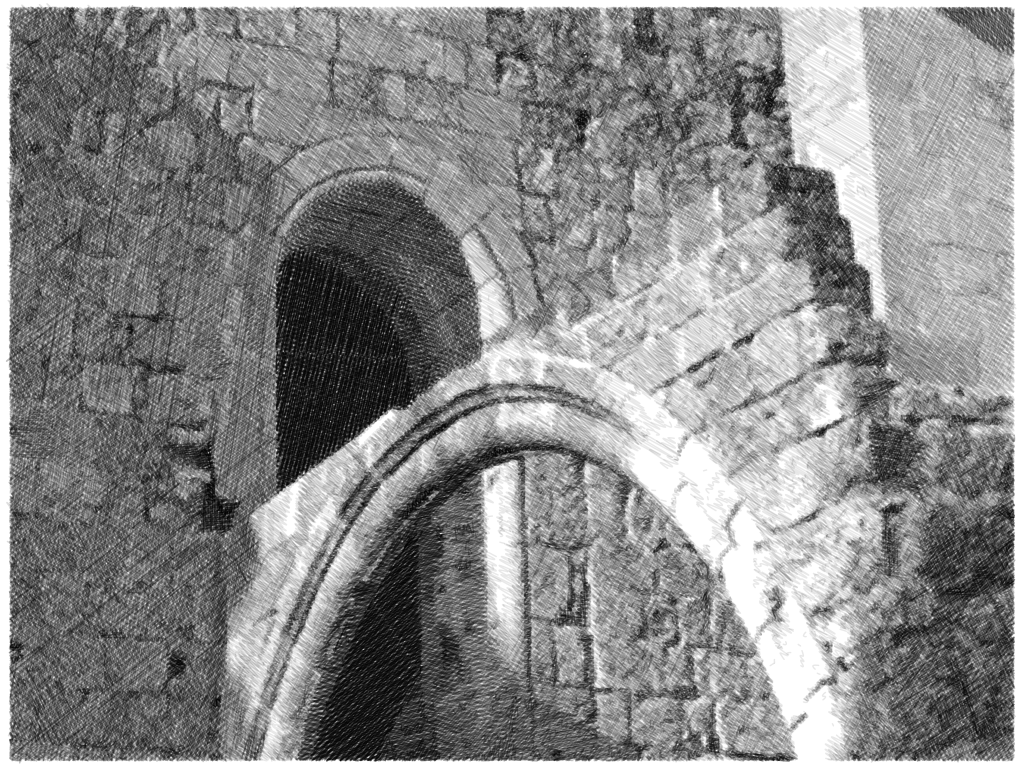
Somewhere in Rhodes

Somewhere in Rhodes

SketchMee seems to me to give more realistic simulations of pencil sketches than, say, SketchGuru.
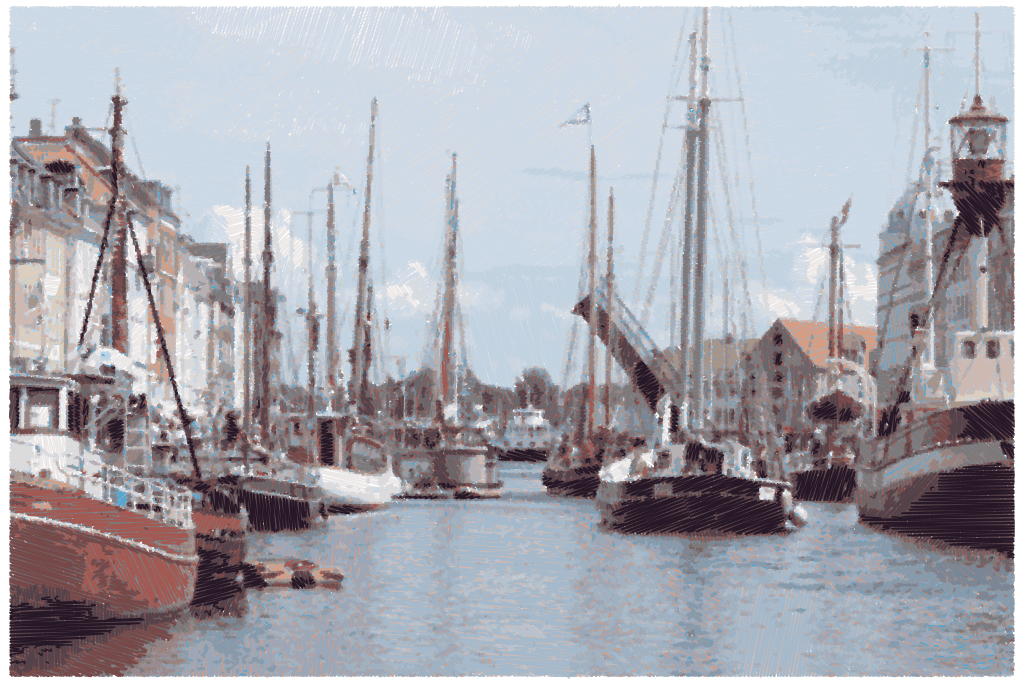
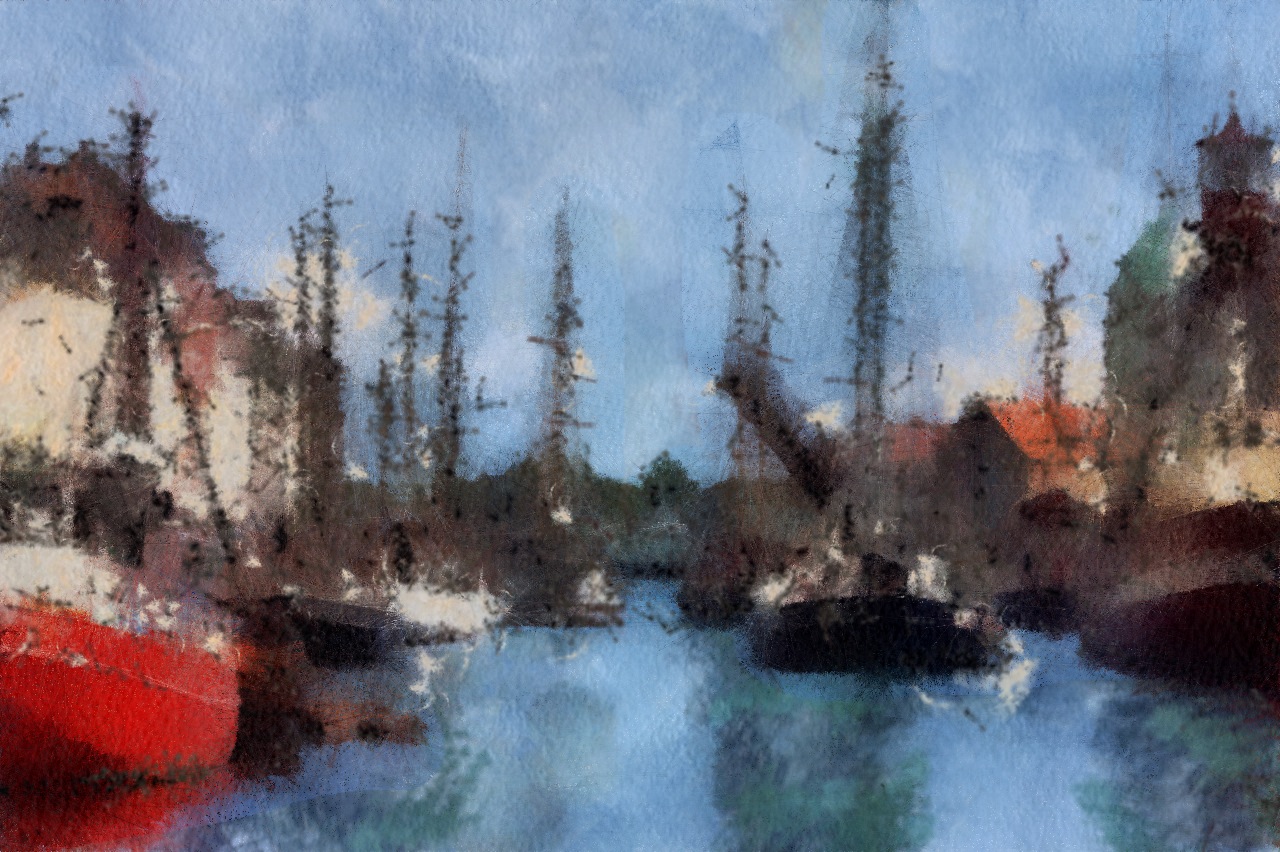
Copenhagen Harbour

Copenhagen Harbour

Coloured chalk was fun, though I can’t say how realistic the effect is.

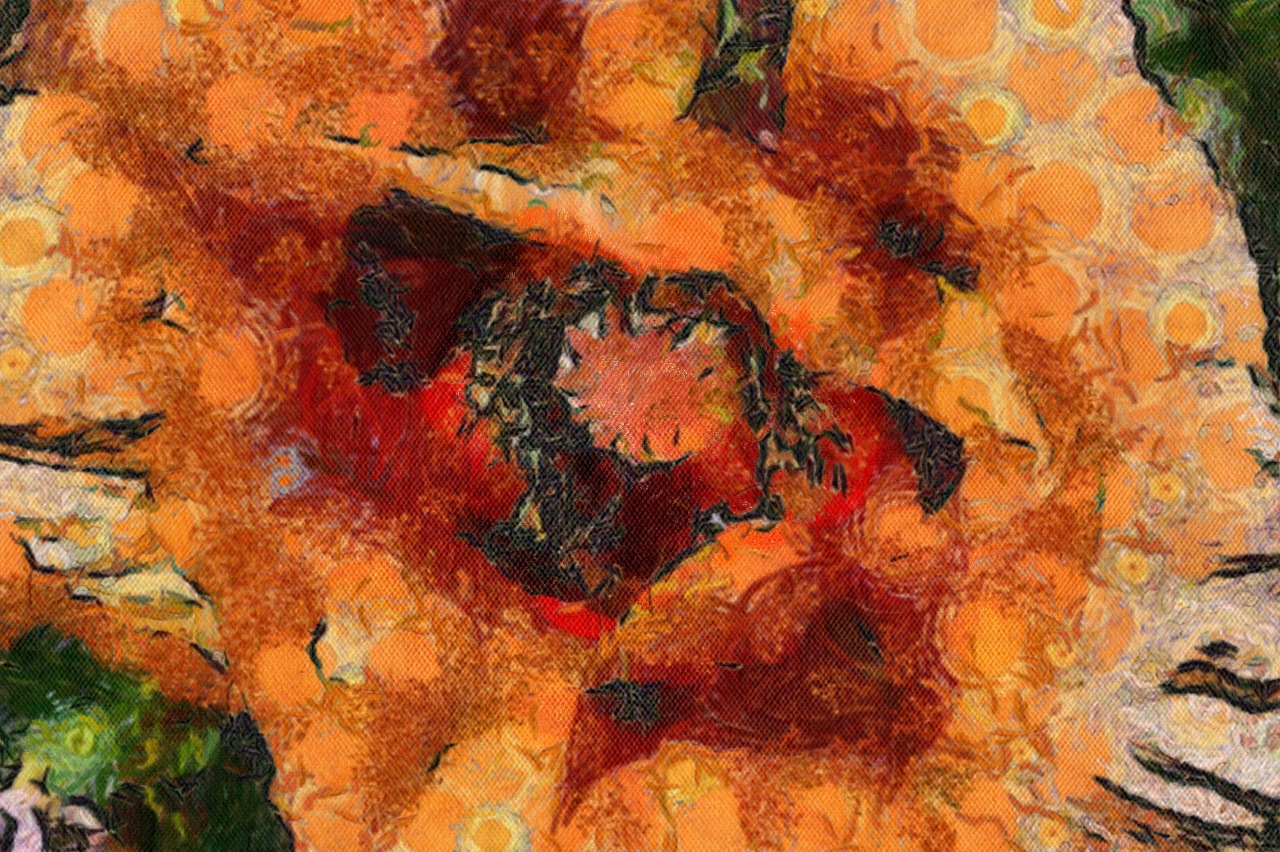
Poppy

Poppy


PaintMee HD

I was sufficiently pleased with the results of Sketchmee HD that I decided to press the buy button on one of the developer’s other apps: PaintMee HD. Basic operation is the same as SketcheMee, though obviously the controls are more relevant to oil painting.

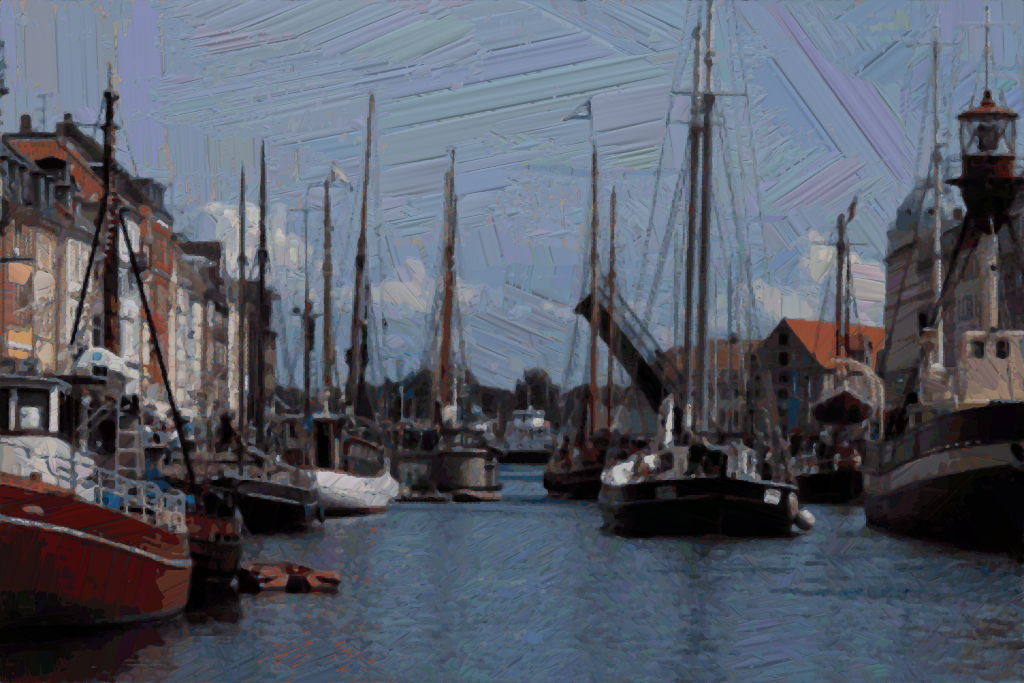
The results from PaintMee aren’t as satisfactory as SketchMee.
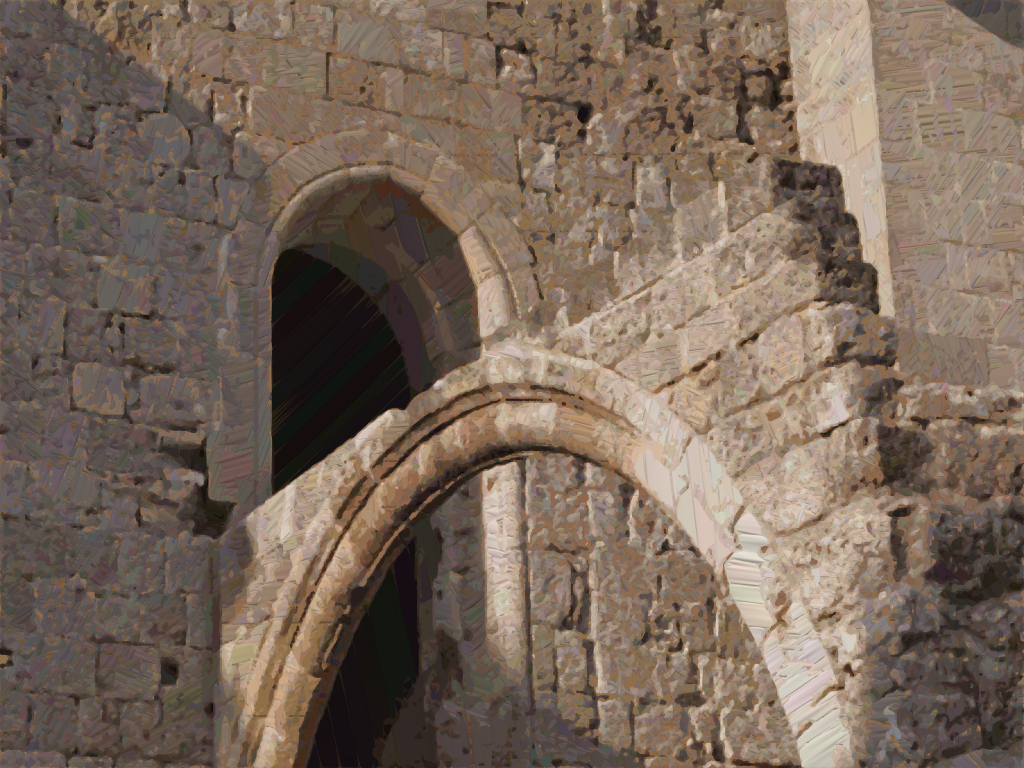
Somewhere in Rhodes
Somewhere in Rhodes

Copenhagen Harbour

Copenhagen Harbour

There’s not much variation in the direction of brush strokes. This is particularly obvious in the sky in the harbour scene. What works well for pencil sketches does not seem to be so good for oil paints. Compare this interpretation from AutoPainter (Frank Benson treatment):

Somewhere in Rhodes (Benson)

Somewhere in Rhodes (Benson)


PhotoArtista – Haiku

The last app in this post, I’ll call Haiku HD because that’s the icon label not the name in the App Store. The output from Haiku is harder to characterise than the other apps. It’s sort of watercolour, but with extra. The website calls it “… a compilation of whimsical stylistic water-colour poetically brushed to aged or artistic paper then outlined in india ink”. Haiku comes with two sets of presets— Abstract Watercolour and Stylised Watercolour—and you can create your own presets. There are sliders for strength, wet edges, paint area, paint variation, ink outline ink outline detail, ink fill, and ink colour. The effect of some of these is obvious, but others aren’t quite so straightforward, plus it seems the effects can be applied to shadows, mid-tones, high-tones or the full image.

I’ve spent some time playing with the presets and adjustments, and haven’t worked out what to expect, so I’ll just present some examples. The output from Haiku does have a certain charm.

Photo Painting: How To Waste Hours (1)

I’m not sure that “photo painting” is the correct term, but I mean the process of transforming photographs so they appear to be painted.

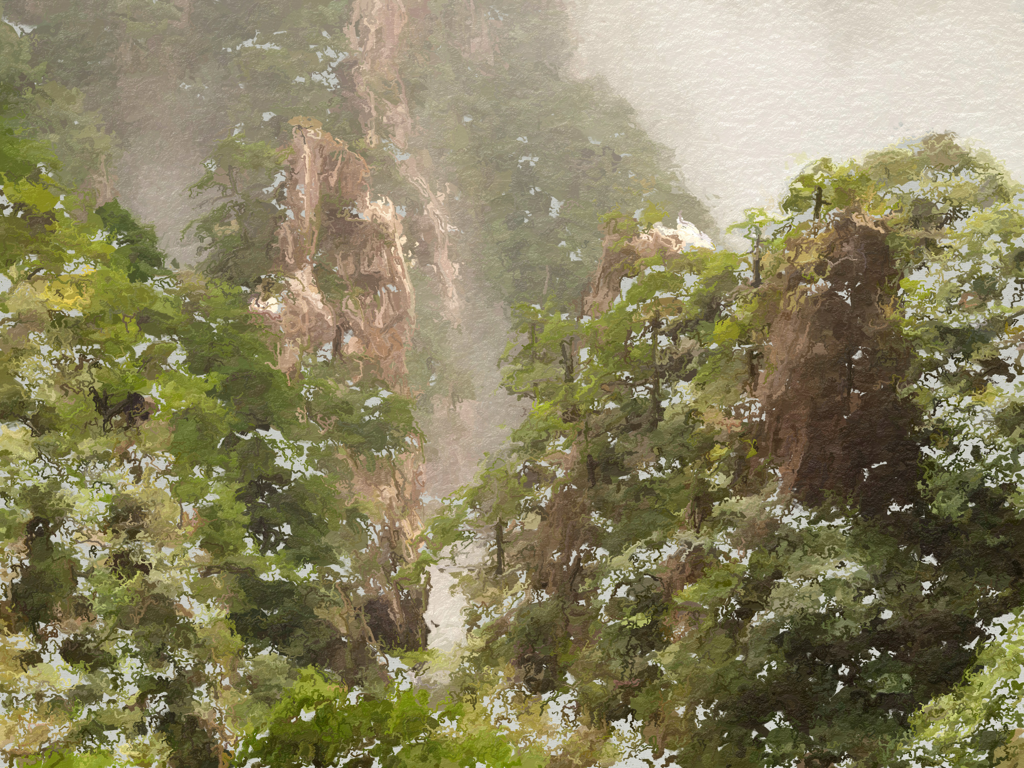
Yellow Mountain Scene

Yellow Mountain Scene

I started playing around having worked my way through the videos in the iPhoneography course from CreativeLIVE that I recently purchased. The course was bitchin’, to borrow one of instructor Jack Davis’ favourite words. Apart from all the usual image-taking and processing stuff, to be expected in a digital photography course, there was a session on painting apps. This got me playing around with some of the apps Jack mentioned, and looking for others. I can see that this could easily become an addiction.

These are some of the apps that I have messing with. I should say that none of the examples in this post are taken with my iPhone; they were all shot with one or other of the various digital cameras I’ve owned over the years. The pictures were all in albums in the Photos app, and imported from there into the different painting apps. By the way, you can click on any image for a larger version.

AutoPainter

I’ve installed AutoPainter HD, which is the iPad edition. There’s also a version for the iPhone. This app is the very simple to use: you only have four choices: Aquarelle, Benson, Cézanne and Van Gogh. The blurb on iTunes claims that the images are not transformed, but recreated using the artistic technique of the selection—Aquarelle is basically watercolour, the others are the actual artists. There is an option to paint a mask to increase detail in parts of the image. And that’s it.

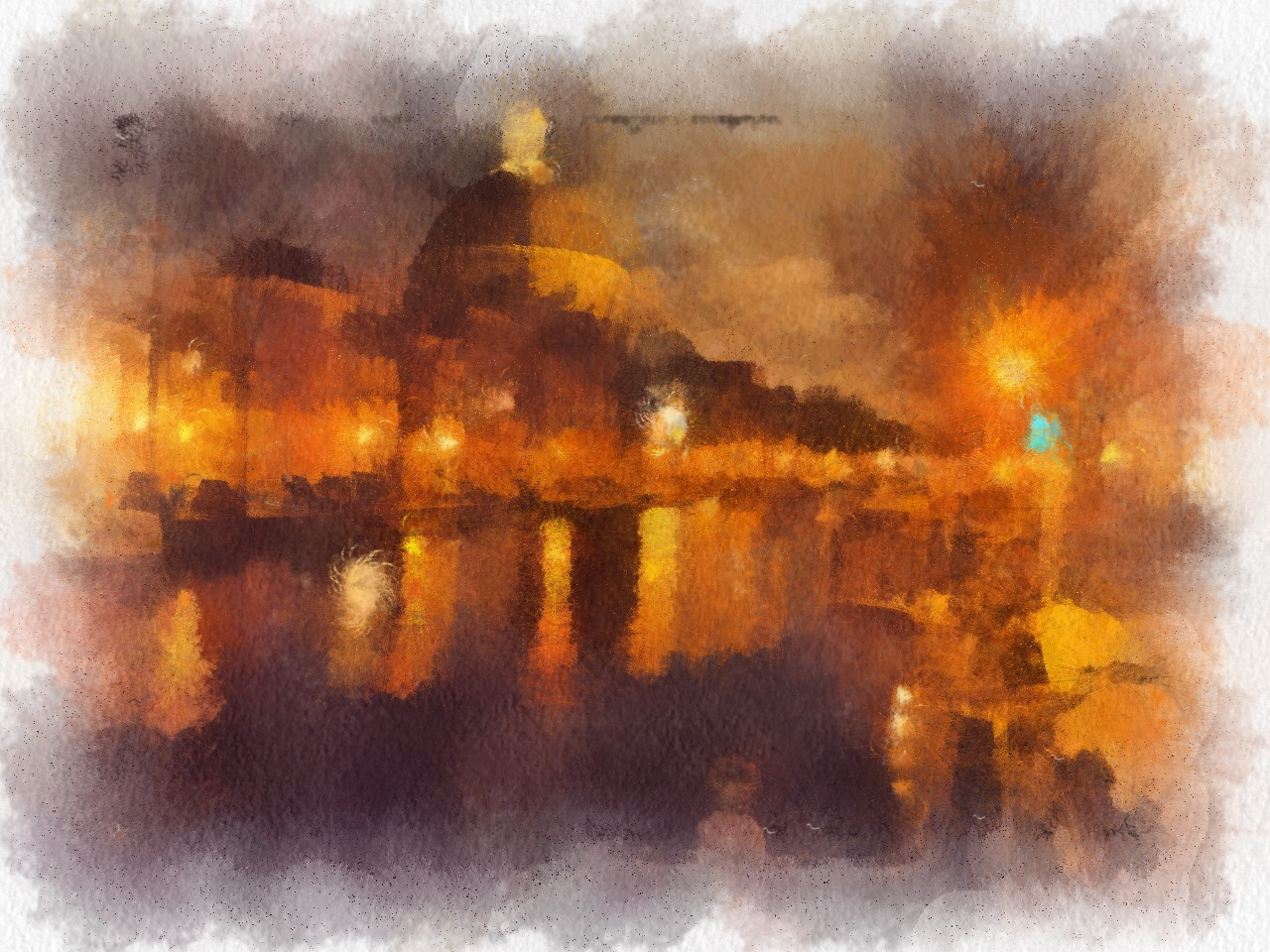
Amsterdam Night Scene

Amsterdam Night Scene—Aquarelle

Copenhagen Harbour — Paul Cézanne

Copenhagen Harbour — Paul Cézanne

Poppy by Van Gogh

Poppy by Van Gogh

I think the results are pretty good.

Glaze

Glaze is free (at the moment) and comes with a bunch of free styles/presets (not attributed to any particular painter or technique). Additional styles can be unlocked as an in-app-purchase—60 styles is the total number. Load an image from the camera roll, and click on a style to apply it. The nice thing is that you can apply multiple styles that can be quickly compared to choose a favourite.

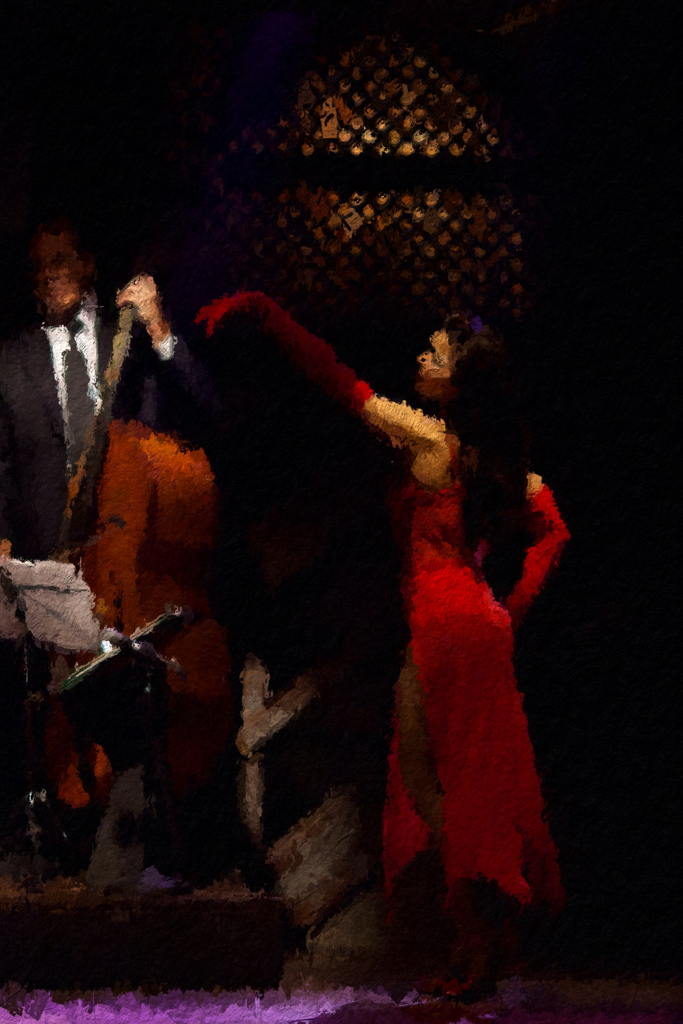
Tango in Buenos Aires

Tango in Buenos Aires

Some results are definitely a little wierd.

Tango 2

Tango 2

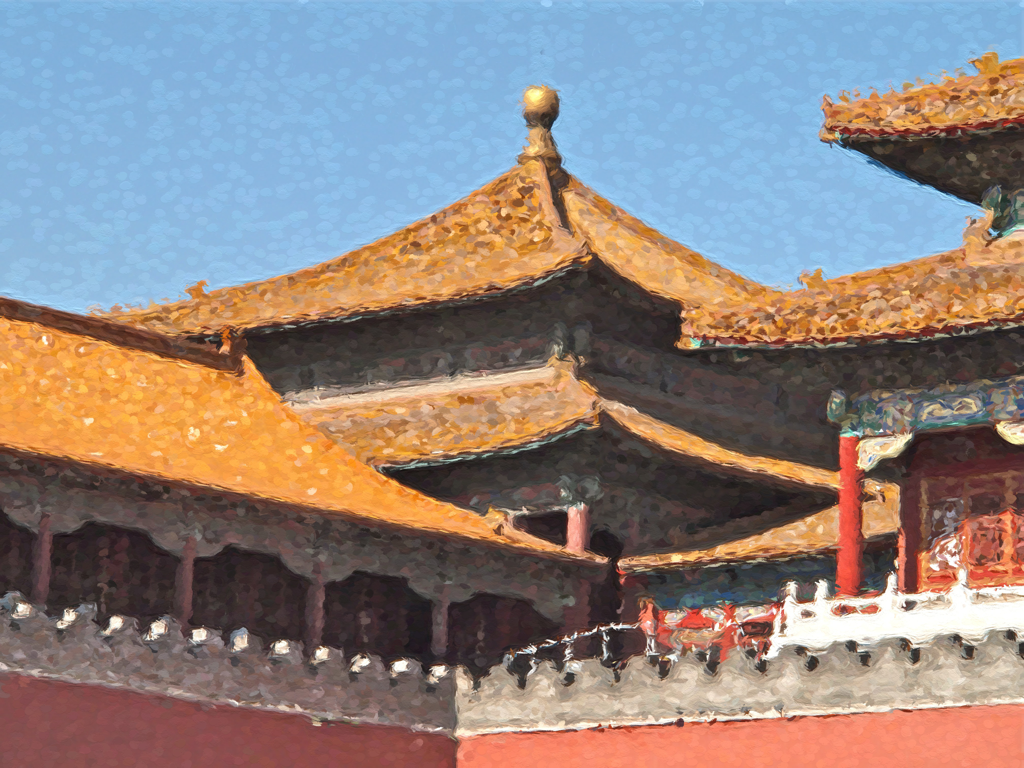
Others, not so much:

Forbidden City

Forbidden City

Apparently, it’s possible to combine styles, so the permutations are enormous. A nice feature is that final images can be saved in different sizes, including the original image resolution.

SketchGuru

This has a bunch of basic styles for pencil, coloured pencil, crayons, chalk, blah, blah, blah… There are  three siders to customise the effect (line thickness, contrast and brightness). There is a free version that has ads, but you can pay money for an ad-free version. I’m not that impressed.

Somewhere in Rhodes

Somewhere in Rhodes

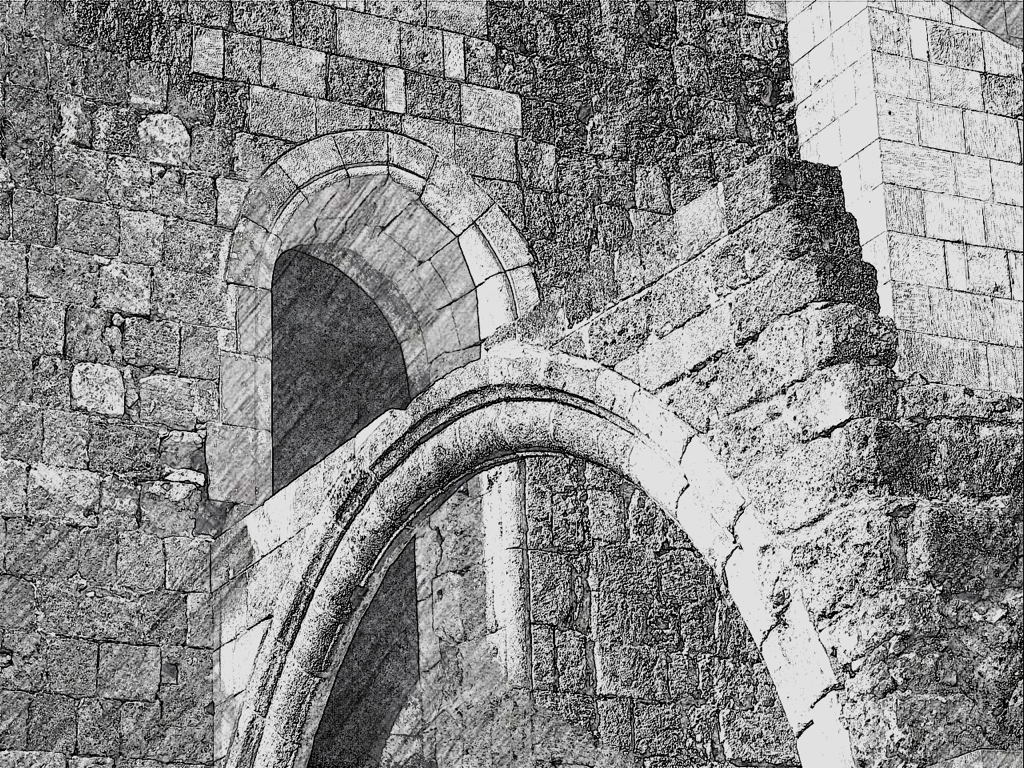
You can see pencil strokes in the lower-left quadrant of the image, but the rest of the picture is more like an old-fashioned etching. Also the output is limited to a maximum of 1280×960. They won’t be getting any of my money.

More to follow…

iPhoneography

Over the last few days, I’ve been watching a set of training videos: iPhoneography  with Jack Davis. I’m only about half way through, but decided to resurrect my blog and mention this as there is currently a special offer. For another 6 days (from 09:47 BST on 17 September), the price is US$59 instead of US$79. If you like to take pictures with your phone (an iPhone is not mandatory), Jack demonstrates lot of of different apps for taking pictures and post-processing. There something over 10 hours of material in the set of videos, including a details look at why the camera is the new iPhone 5S is worth the price of the upgrade on its own. All the justification that I needed to be on the Apple website at midnight tomorrow. 🙂

Jack is very enthusiastic and knowledgeable about his subject. I’ve learned a lot already.

This is the fourth set of videos that I’ve purchased from creativeLIVE; I have found them all to be of high quality and excellent value. They have an interesting model: all the courses are presented live and can be watched free of charge during the course with no further obligation. If you choose to purchase, you can download the videos (HD and/or low definition) for watching any time.

A 15 Minute Exercise To Help You Improve Your Photography in 2012

A 15 Minute Exercise To Help You Improve Your Photography in 2012.

Happy New Year to everyone!

Snapseed Before And After Comparison

Snapseed from Nik Software has been named No. 1 iPad app for Photo and Video. Here are a few before and after comparisons. If you click on an image, a larger version will open in a new window — makes it easier to see the differences. These are JPGs straight from my camera (an Olympus E5) that I copied over to the iPad. I edited each image in Snapseed, saved the updated version to the Camera Roll. Both before and after images where uploaded to WordPress using Blogsy.