Photo Painting (4): More Haikus

While continuing my exploration of Haiku HD, I discovered that the developer, Jixipix Software, has a version for Mac OS X for £5.49. I got my copy from the Mac App Store, but there’s a Windows version available from the Jixipix site. As far as I can tell the desktop Haiku is almost identical to the iPad version: there is an additional adjustment, Colour Vibrancy, and images have to be dragged into the working area and selected using Finder. I load all my processed images in JPEG format into iPhoto. I found I can browse in iPhoto, and choose to reveal a selected image in Finder, which I could then drag into Haiku.

The extra space of my iMac made it easier to do some testing; so I’ve created a few samples to illustrate the possibilities of the app. It’s, by no means, exhaustive, but it does give a flavour of the output options.
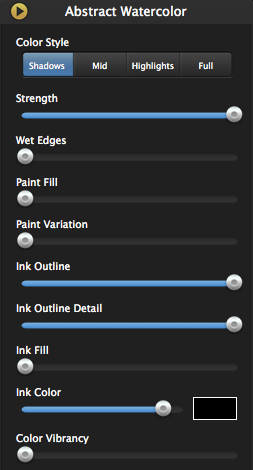
Haiku Adjustments

Haiku Adjustments

  • Colour Style: specifies where the watercolour appears on the image
  • Strength: changes the opacity of the watercolour effect
  • Wet Edges: changes the size of the outline around the water-colour effect
  • Paint Fill:changes how much of the image is covered by the watercolour effect
  • Paint Variation: changes how the paint looks in the selected area
  • Ink Outlines: changes the outline of objects in the image
  • Ink Outline Detail: changes the level of detail
  • Ink Fill: increases ink amount in darker areas of the image
  • Ink Colour: changes the colour for ink outline, detail and fill (has input from pointer and RGB values)
  • Colour Vibrancy: enriches the watercolour pigment
  • Paper and Borders (not shown): choice of background (42) and borders (14)

Pages: 1 2 3 4 5

Photo Painting (3): More Wasted Hours

I’ve been playing some more with Haiku HD. I’m beginning to understand the effects of the various controls, but I’m still a way away from being able to anticipate the final image. As a further illustration of the app, I’ve created a gallery using some of my pictures of Barcelona’s Sagrada Família. If you haven’t visited this amazing basilica yet, you should. Put it on your bucket list. And Barcelona’s a pretty good place anyway.

I wasn’t systematic about choosing or processing images. I usually started with a preset (supplied or custom) and then tweaked until I thought, “That looks OK.” So here’s the gallery; you can find the originals somewhere here.

Photo Painting: How To Waste Hours (2)

Continuing from Part 1, here are some more apps I played with. One thing, I should have mentioned is that I’m only looking at iPad versions of any apps. Many of them do have iPhone versions, but I expect that I would transfer iPhone pics to the iPad for editing on the larger screen.

SketchMee HD

There is a Lite version of this app, but after playing with it for a little while, I decided to spring for the full HD. There are a number of additional features; key ones for me were the increased picture size (for export) and detail level, and the ability to save direct to the Photos Roll rather than using email or out to social media.

SketchMee Controls

SketchMee Controls

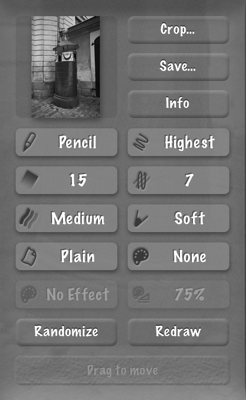
Click on a button to adjust settings. Crop and Save are obvious. Other choices affect technique (pencil/chalk, coloured/not), detail, number of shades, number of overlapped strokes, intensity of shading, tip (levels of hard to soft), paper, paper colour, colour effect and strength of effect.

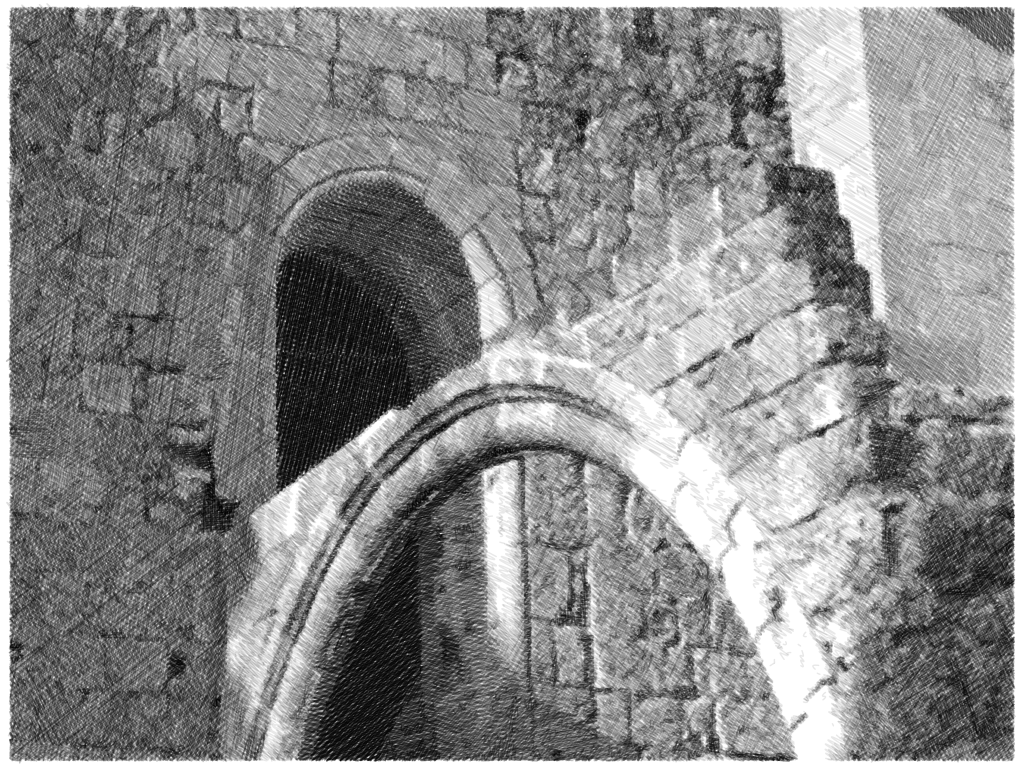
Somewhere in Rhodes

Somewhere in Rhodes

SketchMee seems to me to give more realistic simulations of pencil sketches than, say, SketchGuru.

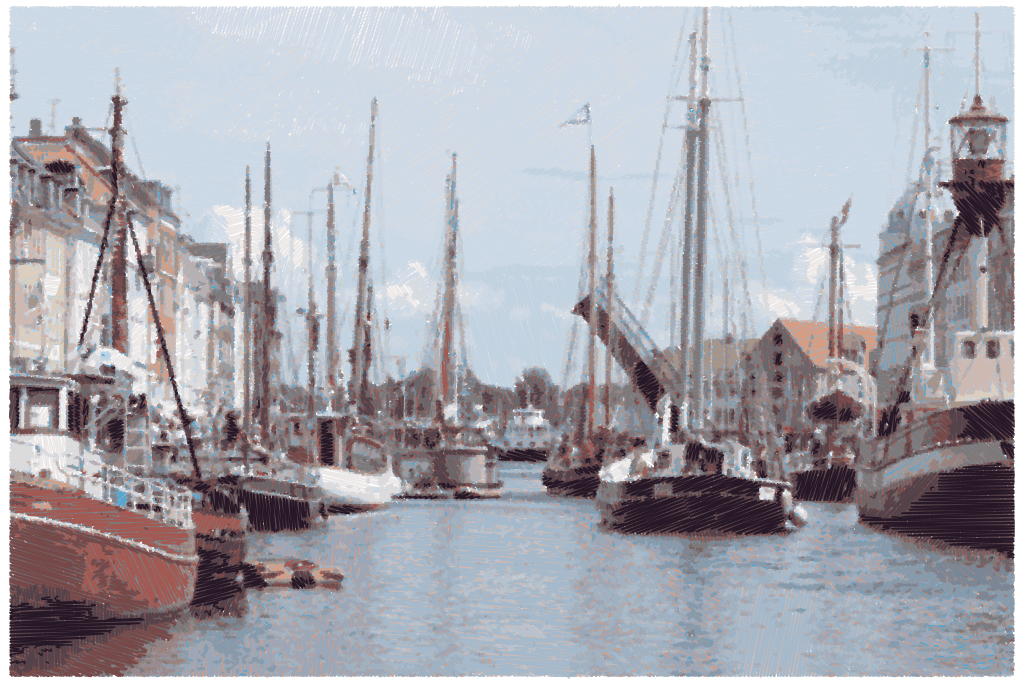
Copenhagen Harbour

Copenhagen Harbour

Coloured chalk was fun, though I can’t say how realistic the effect is.

Poppy

Poppy


PaintMee HD

I was sufficiently pleased with the results of Sketchmee HD that I decided to press the buy button on one of the developer’s other apps: PaintMee HD. Basic operation is the same as SketcheMee, though obviously the controls are more relevant to oil painting.

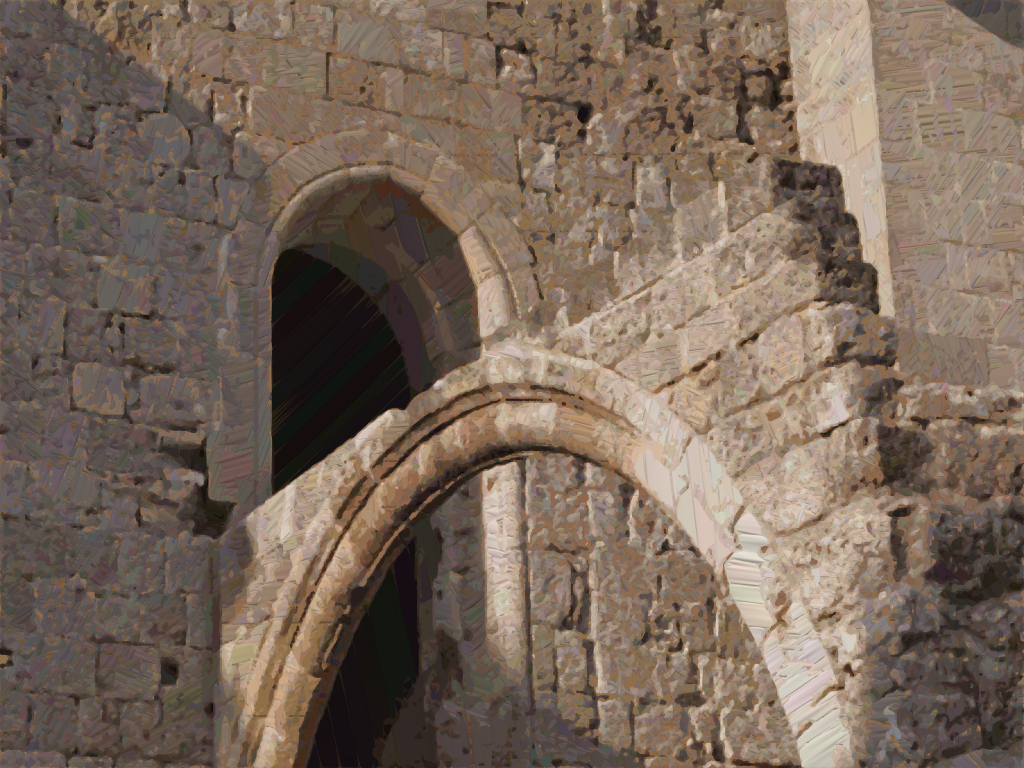
The results from PaintMee aren’t as satisfactory as SketchMee.

Somewhere in Rhodes

Somewhere in Rhodes

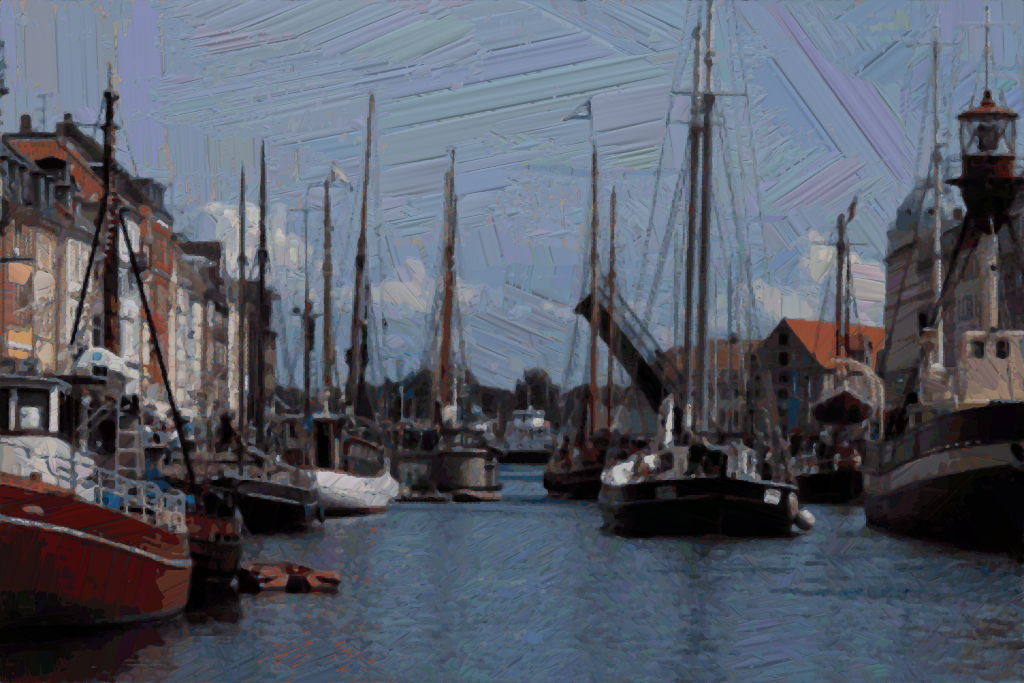
Copenhagen Harbour

Copenhagen Harbour

There’s not much variation in the direction of brush strokes. This is particularly obvious in the sky in the harbour scene. What works well for pencil sketches does not seem to be so good for oil paints. Compare this interpretation from AutoPainter (Frank Benson treatment):

Somewhere in Rhodes (Benson)

Somewhere in Rhodes (Benson)


PhotoArtista – Haiku

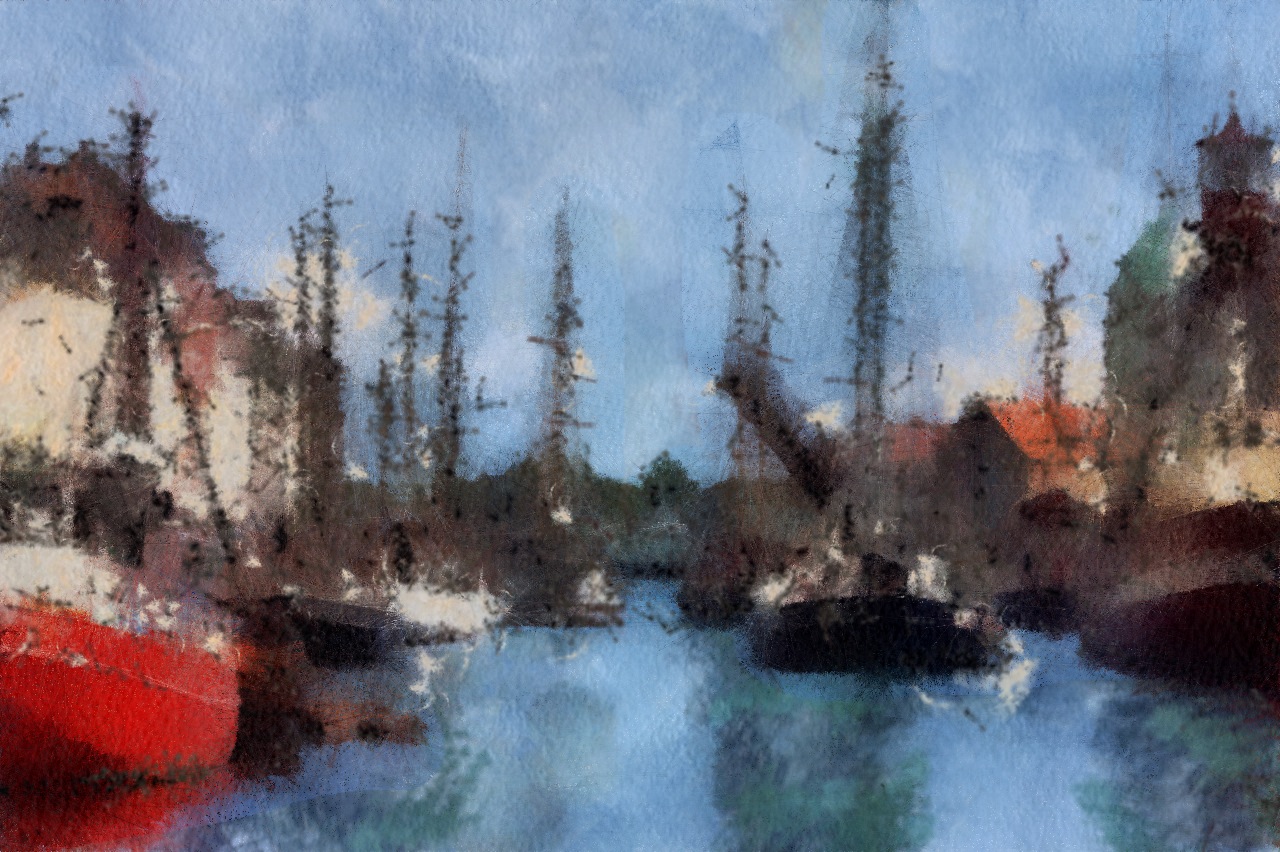
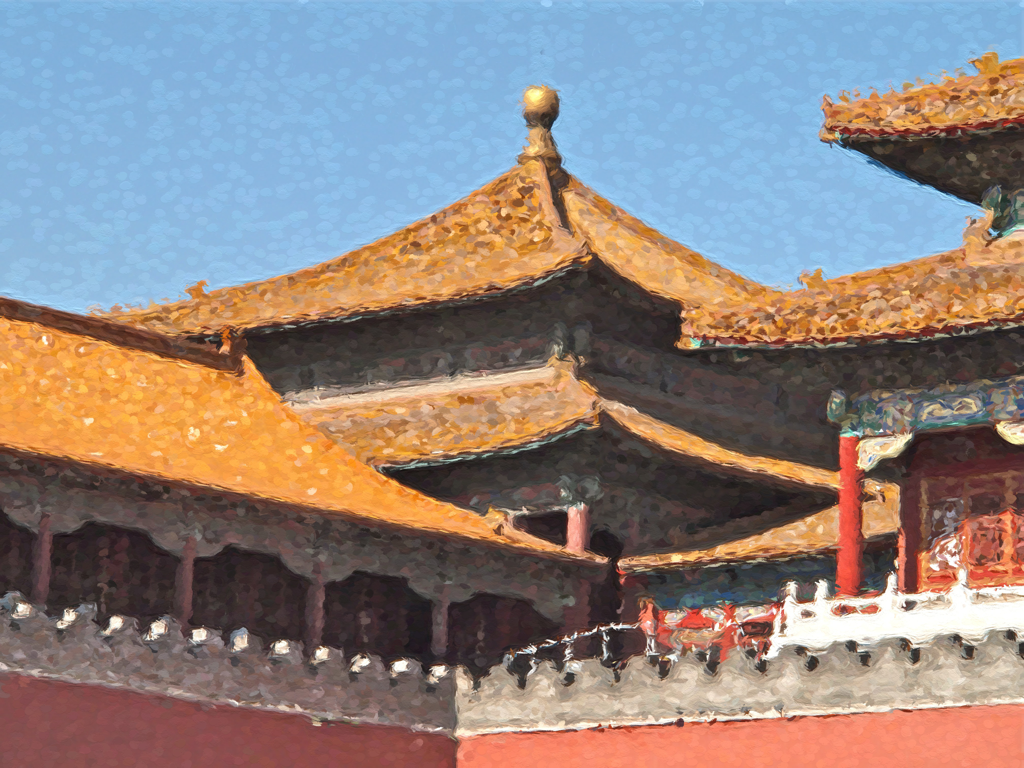
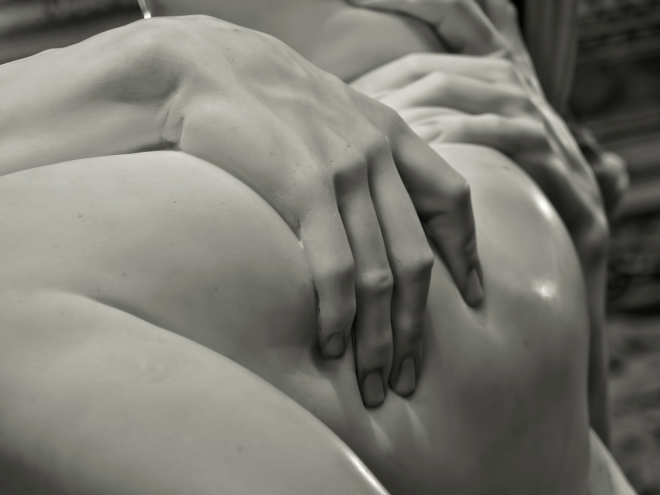
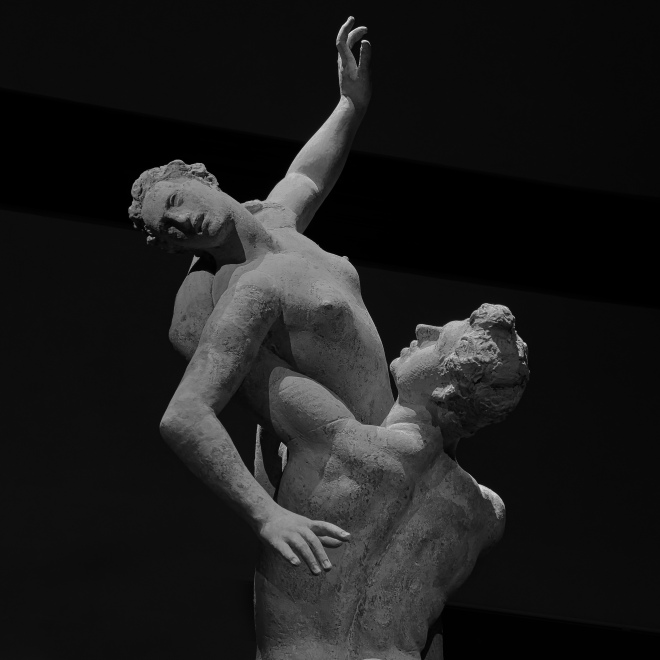
The last app in this post, I’ll call Haiku HD because that’s the icon label not the name in the App Store. The output from Haiku is harder to characterise than the other apps. It’s sort of watercolour, but with extra. The website calls it “… a compilation of whimsical stylistic water-colour poetically brushed to aged or artistic paper then outlined in india ink”. Haiku comes with two sets of presets— Abstract Watercolour and Stylised Watercolour—and you can create your own presets. There are sliders for strength, wet edges, paint area, paint variation, ink outline ink outline detail, ink fill, and ink colour. The effect of some of these is obvious, but others aren’t quite so straightforward, plus it seems the effects can be applied to shadows, mid-tones, high-tones or the full image.

I’ve spent some time playing with the presets and adjustments, and haven’t worked out what to expect, so I’ll just present some examples. The output from Haiku does have a certain charm.

Photo Painting: How To Waste Hours (1)

I’m not sure that “photo painting” is the correct term, but I mean the process of transforming photographs so they appear to be painted.

Yellow Mountain Scene

Yellow Mountain Scene

I started playing around having worked my way through the videos in the iPhoneography course from CreativeLIVE that I recently purchased. The course was bitchin’, to borrow one of instructor Jack Davis’ favourite words. Apart from all the usual image-taking and processing stuff, to be expected in a digital photography course, there was a session on painting apps. This got me playing around with some of the apps Jack mentioned, and looking for others. I can see that this could easily become an addiction.

These are some of the apps that I have messing with. I should say that none of the examples in this post are taken with my iPhone; they were all shot with one or other of the various digital cameras I’ve owned over the years. The pictures were all in albums in the Photos app, and imported from there into the different painting apps. By the way, you can click on any image for a larger version.

AutoPainter

I’ve installed AutoPainter HD, which is the iPad edition. There’s also a version for the iPhone. This app is the very simple to use: you only have four choices: Aquarelle, Benson, Cézanne and Van Gogh. The blurb on iTunes claims that the images are not transformed, but recreated using the artistic technique of the selection—Aquarelle is basically watercolour, the others are the actual artists. There is an option to paint a mask to increase detail in parts of the image. And that’s it.

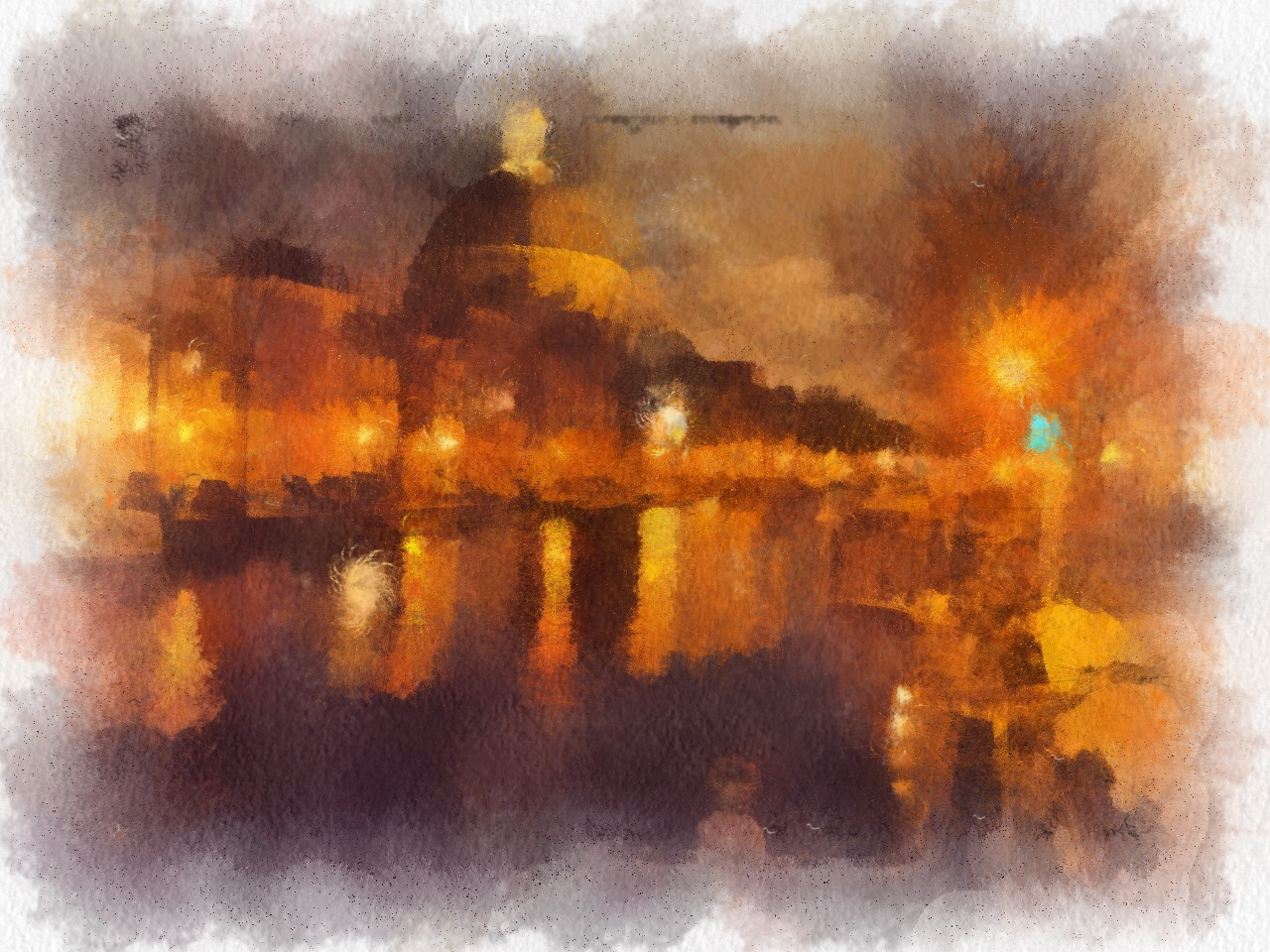
Amsterdam Night Scene

Amsterdam Night Scene—Aquarelle

Copenhagen Harbour — Paul Cézanne

Copenhagen Harbour — Paul Cézanne

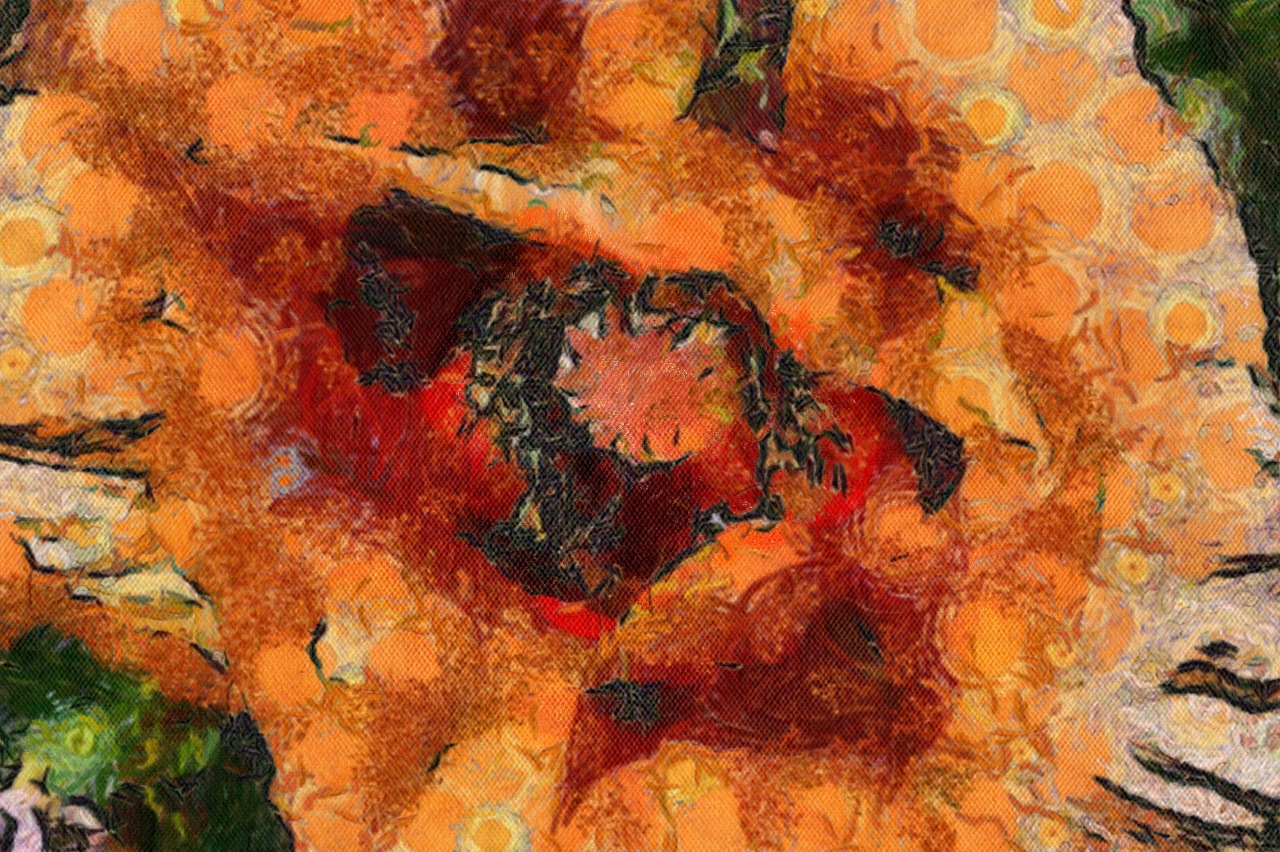
Poppy by Van Gogh

Poppy by Van Gogh

I think the results are pretty good.

Glaze

Glaze is free (at the moment) and comes with a bunch of free styles/presets (not attributed to any particular painter or technique). Additional styles can be unlocked as an in-app-purchase—60 styles is the total number. Load an image from the camera roll, and click on a style to apply it. The nice thing is that you can apply multiple styles that can be quickly compared to choose a favourite.

Tango in Buenos Aires

Tango in Buenos Aires

Some results are definitely a little wierd.

Tango 2

Tango 2

Others, not so much:

Forbidden City

Forbidden City

Apparently, it’s possible to combine styles, so the permutations are enormous. A nice feature is that final images can be saved in different sizes, including the original image resolution.

SketchGuru

This has a bunch of basic styles for pencil, coloured pencil, crayons, chalk, blah, blah, blah… There are  three siders to customise the effect (line thickness, contrast and brightness). There is a free version that has ads, but you can pay money for an ad-free version. I’m not that impressed.

Somewhere in Rhodes

Somewhere in Rhodes

You can see pencil strokes in the lower-left quadrant of the image, but the rest of the picture is more like an old-fashioned etching. Also the output is limited to a maximum of 1280×960. They won’t be getting any of my money.

More to follow…

Seagate Wireless Plus

I love my iPad. It has lots of stuff on it — apps, photos, books, music videos, … … So much, in fact, that there’s not a lot of spare space (next upgrade will be the 128 GB model) for movies and TV shows that I’d like to watch when I go away. I just got the HD version of The Hobbit from iTunes: it’s 6 GB and wouldn’t fit on the iPad without some drastic surgery.

A possible solution seemed to be the Seagate Wireless Plus. It has a 1 TB disk and generates its own wireless network to which the iPad (or any other suitable device—Android and Kindle have their own apps) can be connected. Apparently, up to 3 separate, simultaneous broadcasts are possible. It certainly worked with my iPad and iPad Mini with no obvious degradation of performance.

Conclusion

I haven’t used the Wireplus+ in the wild yet, but after a couple of days messing about, the bottom line is that this seems to be a pretty nifty gadget. When you switch the thing on, it broadcasts a wireless network (the range is supposed to be up to 150 feet/45m). Select this network in the iDevice settings, start the Seagate Media app and you’re away—ready to play whatever content you have loaded. Content that is not DRM-protected plays inside the app, films/videos from iTunes play in the Safari browser, provided the iPad is authorised on the relevant iTunes account. The Wireless+ is only 254 gms plus cable and charger.

Set-up

Set-up of the Wireless+ was pretty straightforward:

  1. Turn on to start the wireless network.
  2. Download the Seagate Media app.
  3. Connect to the Seagate wireless network in IOS settings.
  4. Run the app and configure the network. At this point, you can change the network SSID and set a password. You can also now specify your normal wireless network (inside the Seagate app), so you have normal Internet connectivity when using the Wireless+.
  5. A final step for Mac users, is to plug the drive into USB port (USB 3 downwards-compatible with USB 2), and run an installer that is supplied on the drive.

Operation

To use the Wireless+, just turn it on to start the network. A blue LED flashes while the network initialises; it takes several seconds for the blue light to become solid. My experience has been that this time can vary quite a bit.

You must change the IOS settings to choose the Seagate network each time. Possibly, the iPad might connect automatically, if there are no other networks around.

Run the app and play content. The app has display options to change how the available files are displayed. Different media types can be filtered, and can be shown by folders. After loading a few dozen TV episodes and a few films, this seems to be an easier way to find what you are looking for as the media display is a bit overwhelming.

The Wireless+ has a battery; 10 hours usage is claimed. I haven’t checked this, but this means you could have your own film library on long-haul flights.

Loading Content

The simplest and quickest way to do this is plug the drive into your computer and copy files to it. I found that for iTunes stuff, it was best to use copy rather than drag-and-drop, so as not to risk messing the iTunes library. The wireless network does not broadcast when plugged into a USB port.

The Wireless+ does appear as a shared device in Finder on my iMac. It’s possible to copy content, but I wouldn’t advise it: sloooow.

I discovered that it is possible to manage the Wireless+ content using FileBrowser on the iPad. This makes it easier to reorganise your content, if you choose to. This also means you can copy from other sources, such as Dropbox. It does work, but it’s not for regular use—slower than paint drying.

Problems

Files don’t always copy correctly

More than once, I have copied a group of files from my iMac via USB 3. Most files transfer correctly, but occasionally there’s a problem, which isn’t indicated during the copy process. What happens is that the Seagate Media app subsequently refuses to play a video file with an error message about incompatible format. It does appear that these faulty files can be identified because the video icon is generic, whereas normal files have in icon that displays the movie or TV episode information. The solution is to re-copy the files, but I’m not absolutely certain that this always cures the problem.

Quick Start instructions a little too quick

Initial set-up is straightforward, but after I got to the Mac-specific bits, things got a little flakey. I’m not entirely certain what went wrong or how I managed to fix things. At one point, I had to do a paperclip reset of the Wireless+. I’ve since discovered there’s online manual. Since it’s a PDF, it would have been sensible to include it on the disk. Anyway, as I’ve said, every things seems to be OK now.

iPhoneography

Over the last few days, I’ve been watching a set of training videos: iPhoneography  with Jack Davis. I’m only about half way through, but decided to resurrect my blog and mention this as there is currently a special offer. For another 6 days (from 09:47 BST on 17 September), the price is US$59 instead of US$79. If you like to take pictures with your phone (an iPhone is not mandatory), Jack demonstrates lot of of different apps for taking pictures and post-processing. There something over 10 hours of material in the set of videos, including a details look at why the camera is the new iPhone 5S is worth the price of the upgrade on its own. All the justification that I needed to be on the Apple website at midnight tomorrow. 🙂

Jack is very enthusiastic and knowledgeable about his subject. I’ve learned a lot already.

This is the fourth set of videos that I’ve purchased from creativeLIVE; I have found them all to be of high quality and excellent value. They have an interesting model: all the courses are presented live and can be watched free of charge during the course with no further obligation. If you choose to purchase, you can download the videos (HD and/or low definition) for watching any time.