Dan Rubin’s 10 best smartphone photography apps
via How to get the best out of photo apps on your smartphone – video | Technology | theguardian.com.
Interesting video for iPhoneographers.
Second and Third Thoughts
Dan Rubin’s 10 best smartphone photography apps
via How to get the best out of photo apps on your smartphone – video | Technology | theguardian.com.
Interesting video for iPhoneographers.
Since writing about photo painting apps some time ago—see these posts—I’ve been keeping an eye open for other interesting painting apps. I recently stumbled across Waterlogue. Waterlogue shares some of the DNA of Popsicolor as it’s a collaboration between John Balestrieri, Tinrocket and Robert Clair ChromaticBytes. This is what the authors have to say:
We wanted to come up with an easy and fast way for people to create images based on the kinds of aesthetic decisions an artist makes when he or she is painting.
The technology we developed for Waterlogue transforms your photos into spontaneous, unique, and brilliant watercolor sketches that look like real paintings. Waterlogue distills your environment down to its essence—just the way an artist would—and turns even an on-the-fly snapshot into something luminous and sublime.
We designed Waterlogue to create the most authentic and aesthetically true watercolor interpretations available, and we hope that as soon as you start using the app, you’ll start seeing the world differently.
We’re visiting Hong Kong. The other day CJ took us out for some dan-dan-mien (noodles), which seems to be a comfort food for her and Gia. After lunch, CJ suggested that we visit Chi Lin Nunnery. The nunnery is not terrible old—founded in 1934—but was rebuilt in the 1990’s using traditional methods. It has beautiful gardens that are open to the public with no charge.
I have been uploading my photographs to my website, rogercavanagh.com, for some time. However, I decided to simplify things and consolidate on the WordPress platform. Consequently, I’ve spent the last few days uploading my back catalogue to oddrops. The job’s now complete, so please browse.
To while away the time, as the files have been processed, I’ve been playing Real Racing 3. It’s not really a driving sim game, more of an arcade game as you can crash your car into a wall at 250 mph. While there’ll be some entertainment as windscreens fracture and disappear, rear lights smash into smithereens, bumpers fall off, doors flap open, your car will bounce of the wall and be able to carry on to the finish of the race; it’s impossible to do enough damage to render the car undriveable. The graphics are great. There’re nice little touches like exhaust gases, tyre tracks in the grass, should you go off-track, reappear as you drive round subsequent laps, clouds are reflected in a car’s paintwork and the reflection changes as the car moves round the track. The cars (currently 73 different models) are wonderful replicas of real ones: from the humble Nissan Silvia to the Bugatti Veyron, Lambo’s, Koenigsegg’s and more. The tracks are based on real ones like Silverstone, Brands Hatch, Laguna Seca and Catalunya. I have had some fun playing the game and wasted hours—I was going to say “countless hours”, but the app includes a player profile that tells you to the last second how much of your life you’ve spent staring at an iPad. I’m not going to admit how much.
So why the warning? Well, the app is free to download, but the pricing model is freemium. While there is nothing wrong with this per se—after all I haven’t spent a single penny for many hours of playtime—it’s the balance that I think is wrong. When you race you win “money”, R$, and fame points. As you achieve certain milestones—completion of a series, accumulation of so many fame points, you are awarded gold. To progress through the game you must buy new cars and upgrade those cars with R$ or gold. Winning a race might generate R$20,000+, but often is only 2-3k. This is true whatever the cost of the car you’re racing: you might have invested R$ millions in a car (plus upgrades) to race for a prize of R$3,000. Gold is awarded with even greater frugality. Of course, the freemium model means that you can buy R% and gold with an in-app purchase (IAP). This is where EA/Fire Monkeys are trying to rip people off. Some of the top cars cost in the range of R$1-2.5 million. An IAP for R$2,000,000 cost £34.99. The Koenigsegg Agera R can only be bought with gold—800 pieces. An IAP for 1,000 gold costs £69.99. Such prices are excessive and seem intended to take advantage of players who are less bloody-minded than me.
So, if you ask me whether I recommend this game, I say no: I don’t like the cynical attitude of the game’s designers.
I’ve continued my love affair with Popsicolor. I’ve created a set of popsicles from photos that I took during our recent visit to Istanbul.


In my last post about photo painting, I mentioned that I’d sent myself a postcard using Popsicolor’s integration with Sincerely. That postcard has now arrived. I placed the order and received an acknowledgement email on 21 October; on 23 October, I received a despatch notification; the card arrived on 28 October. It is a standard-sized postcard with what looks like a medium-glossy finish. It’s a good quality print and looks very attractive. My wife saw the card propped on a shelf and commented on its quality without knowing it was an image I had created.
The cost for this one-off postcard was USD 2.99, which I don’t think is wildly expensive. It’s possible to buy credits that reduce the cost: 249 bucks gets a price of just under USD 1.70 for an international card. The cheapest bundle is USD 9.90 and gives a unit price of USD 1.98. “Domestic”, by which I assume they mean US, costs half as much.
I think I will be using the service again.
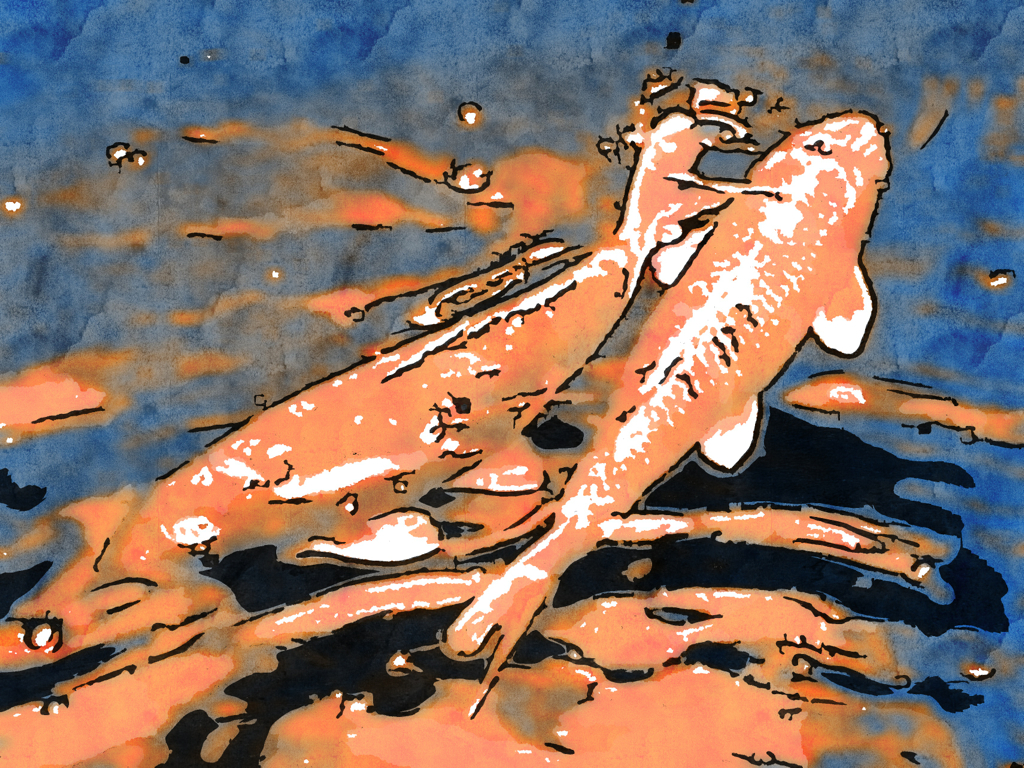
I’ve been continuing my search for good and fun photo painting apps. Today’s post looks at four more.
Painteresque works like many of the photo painting apps: choose an image from the camera roll/albums or take a picture and then apply a style. There are eight choices (Painteresque 1 and 2, Lithograph, Coloured Pencil, Charcoal, Rainbow, Mars and Portrait) plus “do nothing” that allows you to see the original photo. The results that this app produces are pleasing, but they don’t really turn your pictures into an oil painting or watercolour, or… The effects, as you can see from the examples, are more like a filter effect. The progress messages made me chuckle, “Narrying the Wembits” and “Magic Scrooberizing”.


There are controls that allow fine-tuning on quite a number of parameters; some producing weird results, but the effect is still that of a filter. And perhaps, that’s the main problem with this app: the name does not match the product. Still, as I’ve said, the final pictures are attractive, though I suspect (but could be wrong) there are many “filter apps” that produce similar output.


A nice feature of Painteresque is that should you happen upon a combination of these settings that pleases you, it’s possible to save these as a preset.
While continuing my exploration of Haiku HD, I discovered that the developer, Jixipix Software, has a version for Mac OS X for £5.49. I got my copy from the Mac App Store, but there’s a Windows version available from the Jixipix site. As far as I can tell the desktop Haiku is almost identical to the iPad version: there is an additional adjustment, Colour Vibrancy, and images have to be dragged into the working area and selected using Finder. I load all my processed images in JPEG format into iPhoto. I found I can browse in iPhoto, and choose to reveal a selected image in Finder, which I could then drag into Haiku.
The extra space of my iMac made it easier to do some testing; so I’ve created a few samples to illustrate the possibilities of the app. It’s, by no means, exhaustive, but it does give a flavour of the output options.
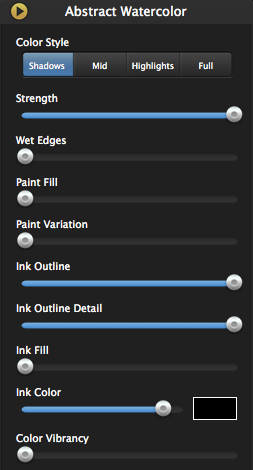
Haiku Adjustments
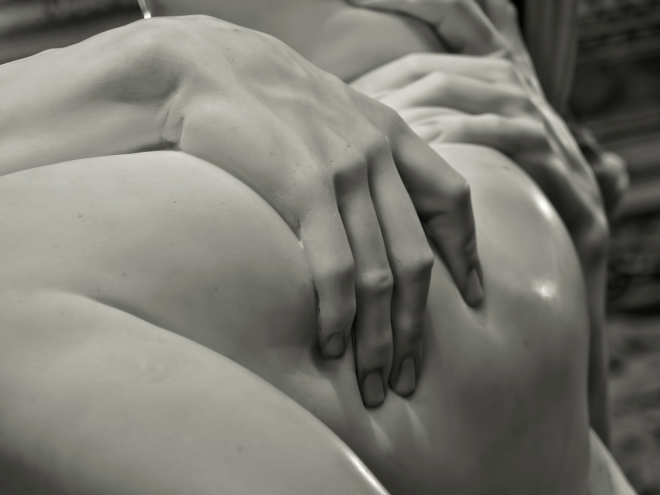
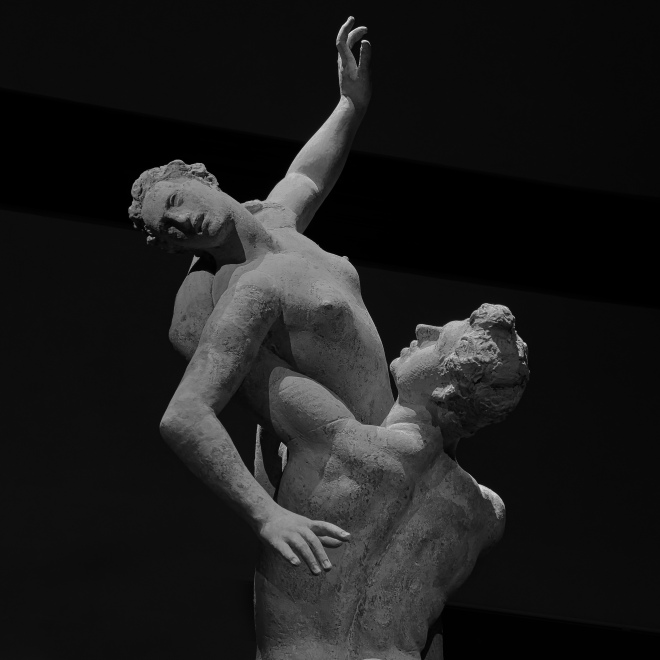
I’ve been playing some more with Haiku HD. I’m beginning to understand the effects of the various controls, but I’m still a way away from being able to anticipate the final image. As a further illustration of the app, I’ve created a gallery using some of my pictures of Barcelona’s Sagrada Família. If you haven’t visited this amazing basilica yet, you should. Put it on your bucket list. And Barcelona’s a pretty good place anyway.
I wasn’t systematic about choosing or processing images. I usually started with a preset (supplied or custom) and then tweaked until I thought, “That looks OK.” So here’s the gallery; you can find the originals somewhere here.



 oddrops