Photo Painting: How To Waste Hours (1)

I’m not sure that “photo painting” is the correct term, but I mean the process of transforming photographs so they appear to be painted.

Yellow Mountain Scene

Yellow Mountain Scene

I started playing around having worked my way through the videos in the iPhoneography course from CreativeLIVE that I recently purchased. The course was bitchin’, to borrow one of instructor Jack Davis’ favourite words. Apart from all the usual image-taking and processing stuff, to be expected in a digital photography course, there was a session on painting apps. This got me playing around with some of the apps Jack mentioned, and looking for others. I can see that this could easily become an addiction.

These are some of the apps that I have messing with. I should say that none of the examples in this post are taken with my iPhone; they were all shot with one or other of the various digital cameras I’ve owned over the years. The pictures were all in albums in the Photos app, and imported from there into the different painting apps. By the way, you can click on any image for a larger version.

AutoPainter

I’ve installed AutoPainter HD, which is the iPad edition. There’s also a version for the iPhone. This app is the very simple to use: you only have four choices: Aquarelle, Benson, Cézanne and Van Gogh. The blurb on iTunes claims that the images are not transformed, but recreated using the artistic technique of the selection—Aquarelle is basically watercolour, the others are the actual artists. There is an option to paint a mask to increase detail in parts of the image. And that’s it.

Amsterdam Night Scene

Amsterdam Night Scene—Aquarelle

Copenhagen Harbour — Paul Cézanne
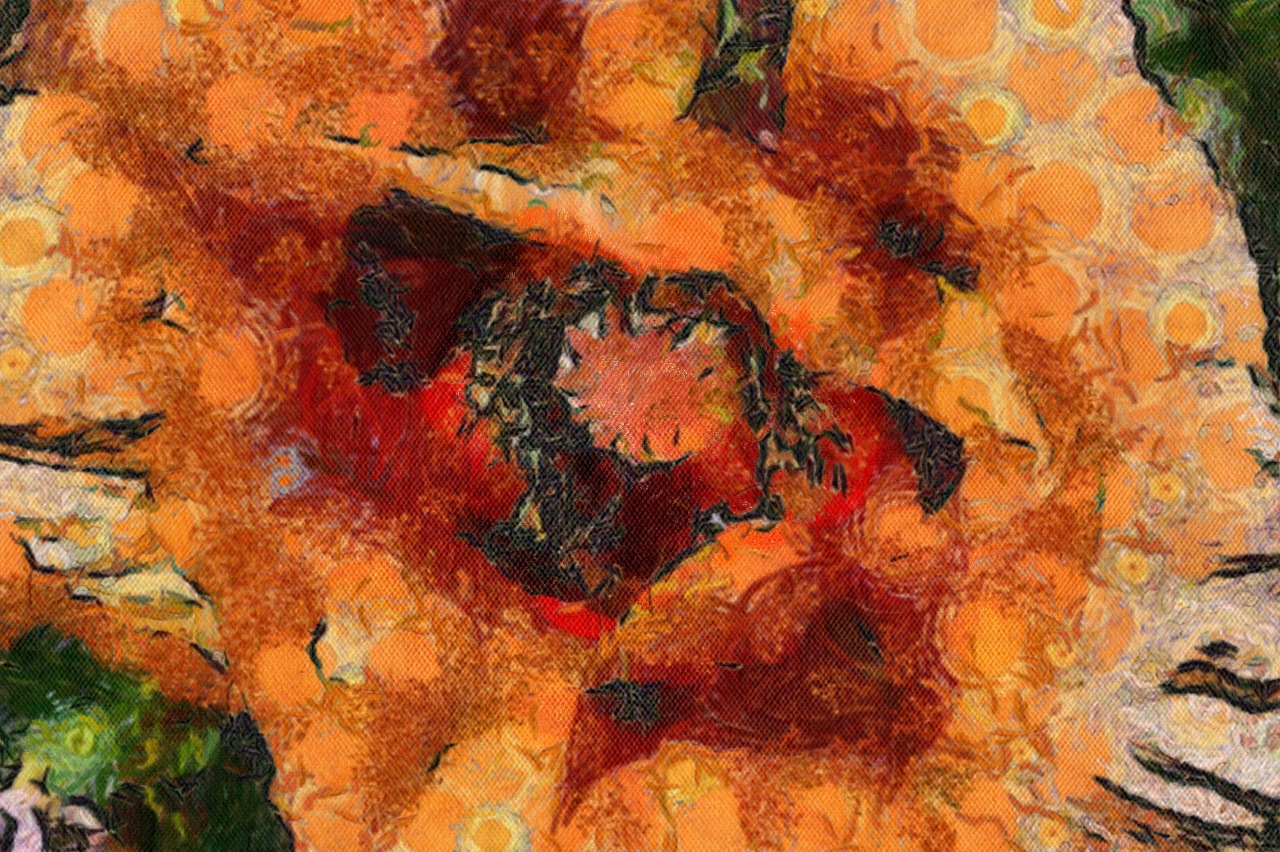
Copenhagen Harbour — Paul Cézanne

Poppy by Van Gogh

Poppy by Van Gogh

I think the results are pretty good.

Glaze

Glaze is free (at the moment) and comes with a bunch of free styles/presets (not attributed to any particular painter or technique). Additional styles can be unlocked as an in-app-purchase—60 styles is the total number. Load an image from the camera roll, and click on a style to apply it. The nice thing is that you can apply multiple styles that can be quickly compared to choose a favourite.

Tango in Buenos Aires

Tango in Buenos Aires

Some results are definitely a little wierd.

Tango 2

Tango 2

Others, not so much:

Forbidden City

Forbidden City

Apparently, it’s possible to combine styles, so the permutations are enormous. A nice feature is that final images can be saved in different sizes, including the original image resolution.

SketchGuru

This has a bunch of basic styles for pencil, coloured pencil, crayons, chalk, blah, blah, blah… There are  three siders to customise the effect (line thickness, contrast and brightness). There is a free version that has ads, but you can pay money for an ad-free version. I’m not that impressed.

Somewhere in Rhodes

Somewhere in Rhodes

You can see pencil strokes in the lower-left quadrant of the image, but the rest of the picture is more like an old-fashioned etching. Also the output is limited to a maximum of 1280×960. They won’t be getting any of my money.

More to follow…

Seagate Wireless Plus

I love my iPad. It has lots of stuff on it — apps, photos, books, music videos, … … So much, in fact, that there’s not a lot of spare space (next upgrade will be the 128 GB model) for movies and TV shows that I’d like to watch when I go away. I just got the HD version of The Hobbit from iTunes: it’s 6 GB and wouldn’t fit on the iPad without some drastic surgery.

A possible solution seemed to be the Seagate Wireless Plus. It has a 1 TB disk and generates its own wireless network to which the iPad (or any other suitable device—Android and Kindle have their own apps) can be connected. Apparently, up to 3 separate, simultaneous broadcasts are possible. It certainly worked with my iPad and iPad Mini with no obvious degradation of performance.

Conclusion

I haven’t used the Wireplus+ in the wild yet, but after a couple of days messing about, the bottom line is that this seems to be a pretty nifty gadget. When you switch the thing on, it broadcasts a wireless network (the range is supposed to be up to 150 feet/45m). Select this network in the iDevice settings, start the Seagate Media app and you’re away—ready to play whatever content you have loaded. Content that is not DRM-protected plays inside the app, films/videos from iTunes play in the Safari browser, provided the iPad is authorised on the relevant iTunes account. The Wireless+ is only 254 gms plus cable and charger.

Set-up

Set-up of the Wireless+ was pretty straightforward:

  1. Turn on to start the wireless network.
  2. Download the Seagate Media app.
  3. Connect to the Seagate wireless network in IOS settings.
  4. Run the app and configure the network. At this point, you can change the network SSID and set a password. You can also now specify your normal wireless network (inside the Seagate app), so you have normal Internet connectivity when using the Wireless+.
  5. A final step for Mac users, is to plug the drive into USB port (USB 3 downwards-compatible with USB 2), and run an installer that is supplied on the drive.

Operation

To use the Wireless+, just turn it on to start the network. A blue LED flashes while the network initialises; it takes several seconds for the blue light to become solid. My experience has been that this time can vary quite a bit.

You must change the IOS settings to choose the Seagate network each time. Possibly, the iPad might connect automatically, if there are no other networks around.

Run the app and play content. The app has display options to change how the available files are displayed. Different media types can be filtered, and can be shown by folders. After loading a few dozen TV episodes and a few films, this seems to be an easier way to find what you are looking for as the media display is a bit overwhelming.

The Wireless+ has a battery; 10 hours usage is claimed. I haven’t checked this, but this means you could have your own film library on long-haul flights.

Loading Content

The simplest and quickest way to do this is plug the drive into your computer and copy files to it. I found that for iTunes stuff, it was best to use copy rather than drag-and-drop, so as not to risk messing the iTunes library. The wireless network does not broadcast when plugged into a USB port.

The Wireless+ does appear as a shared device in Finder on my iMac. It’s possible to copy content, but I wouldn’t advise it: sloooow.

I discovered that it is possible to manage the Wireless+ content using FileBrowser on the iPad. This makes it easier to reorganise your content, if you choose to. This also means you can copy from other sources, such as Dropbox. It does work, but it’s not for regular use—slower than paint drying.

Problems

Files don’t always copy correctly

More than once, I have copied a group of files from my iMac via USB 3. Most files transfer correctly, but occasionally there’s a problem, which isn’t indicated during the copy process. What happens is that the Seagate Media app subsequently refuses to play a video file with an error message about incompatible format. It does appear that these faulty files can be identified because the video icon is generic, whereas normal files have in icon that displays the movie or TV episode information. The solution is to re-copy the files, but I’m not absolutely certain that this always cures the problem.

Quick Start instructions a little too quick

Initial set-up is straightforward, but after I got to the Mac-specific bits, things got a little flakey. I’m not entirely certain what went wrong or how I managed to fix things. At one point, I had to do a paperclip reset of the Wireless+. I’ve since discovered there’s online manual. Since it’s a PDF, it would have been sensible to include it on the disk. Anyway, as I’ve said, every things seems to be OK now.

This kind of **** is no better than spam

iPad 3 Definitely coming in the Spring – Applerepo.com.

I spotted this headline while browsing Zite, which has become one of my main newsreaders. As an iPad fan, I naturally clicked the link to read the entire article, which turns out to be BS and got me sufficiently aggravated to write this post.

Is the any shadow of doubt in the headline? Any whisper of of uncertainty? A hint of scepticism? The merest trace of disbelief? No, there frickin’ well isn’t!

So what do you get when you read this prognostication?

  • “The iPad 3 is still an unconfirmed device…”
  • “…very little is known about it”
  • “…sources indicate…”
  • “The so-called inside source has not been identified…”
  • “…the reports indicate that it is a trustworthy source.”
  • “No word when Apple will actually announce anything…”

And finishes will the earth-shattering “it [an announcement] will likely be after the holiday season”.  Useless drivel all the way!

Snapseed Before And After Comparison

Snapseed from Nik Software has been named No. 1 iPad app for Photo and Video. Here are a few before and after comparisons. If you click on an image, a larger version will open in a new window — makes it easier to see the differences. These are JPGs straight from my camera (an Olympus E5) that I copied over to the iPad. I edited each image in Snapseed, saved the updated version to the Camera Roll. Both before and after images where uploaded to WordPress using Blogsy.